
What is LightOS ?
This article introduces the key features and applicable scenarios of LightOS.
Some small features are subject to change with product updates.
1. What is LightOS?
LightOS can be simply understood as a rapidly deployable system container.
With LightOS, you can:
(1) Create an independent Linux environment.
(2) Operate the terminal directly in your browser via WebShell.
(3) Configure XRDP for remote desktop access via RDP.
(4) Mount LCMD Cloud Drive to access data directly inside the system.
(5) Use snapshots to quickly restore the system to a previous state.
(6) Use a container as a desktop host via HDMI.
Rather than a traditional virtual machine, LightOS is more like a Linux system container with a built-in management interface.
2. Applicable Scenarios
LightOS is typically used in three primary scenarios:
Remote Desktop Host: Ideal for users who need to remotely access a desktop environment from Windows, macOS, or Linux.
Development & Maintenance Environment: Suitable for users who require long-running terminal sessions, development tool installation, script execution, and service debugging.
Desktop Host: Perfect for connecting a monitor, keyboard, and mouse via HDMI, turning your LCMD into a lightweight Linux computer.
If this is your first time using it, we recommend starting with the Remote Desktop or WebShell + Development Environment to familiarize yourself with setup and usage.
3. Remote Desktop Installation and Usage Process
Step 1: Download and open LightOS. Create a new system instance.
Step 2: Set up for Basic Page:
System image: Debian Stable
Image registry: registry.lazycat.cloud
Base Packages: XFCE for desktop environment, Common CLI Tools
Package Mirror: USTC
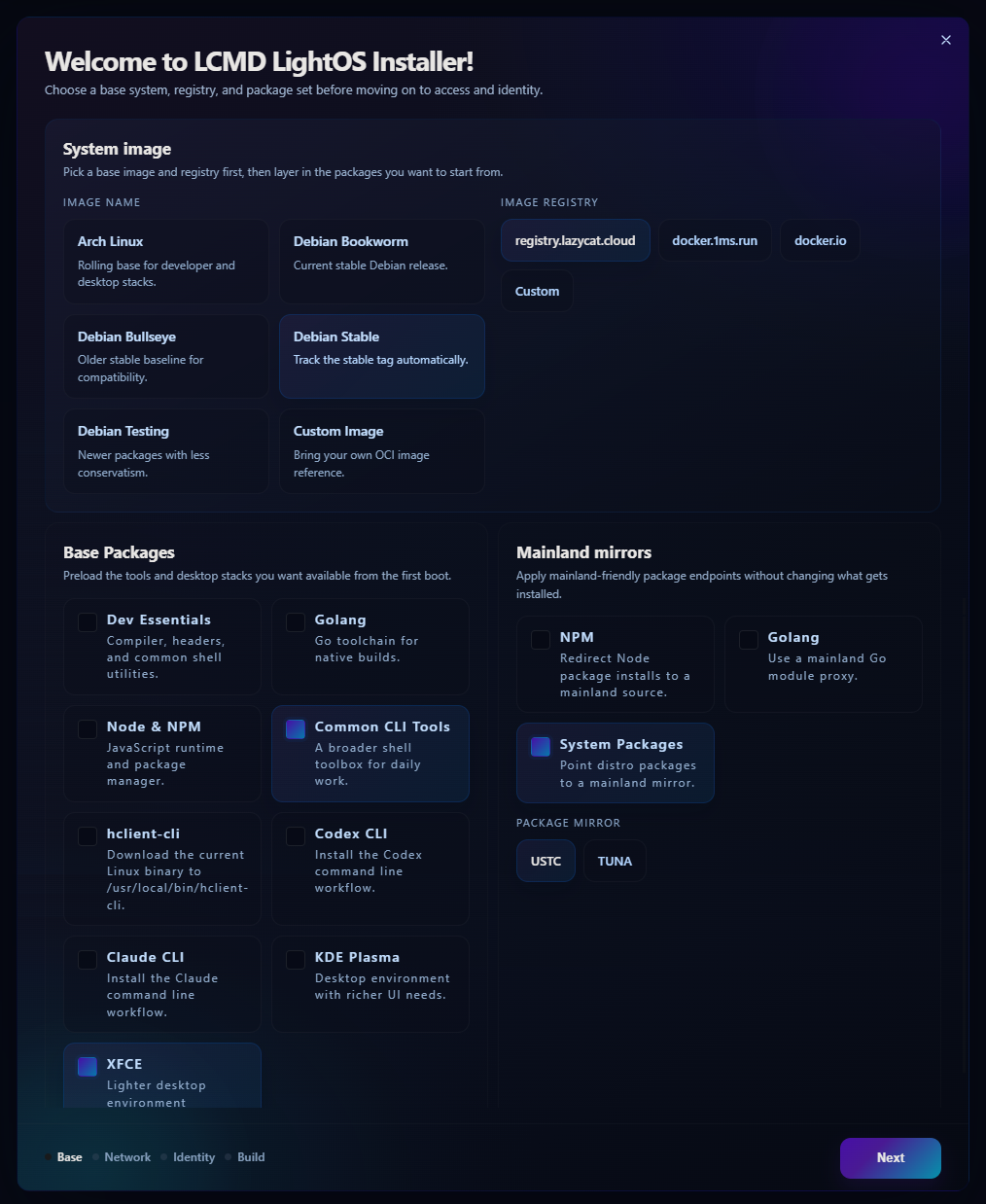
Step 3: Click Next and complete the settings for Network and Filesystem.
Network mode: nat
SSH: enable SSHD
Enable Mount/dev
Enable Mount/lzcsys/data/document, you can access data from LCMD Cloud Drive.
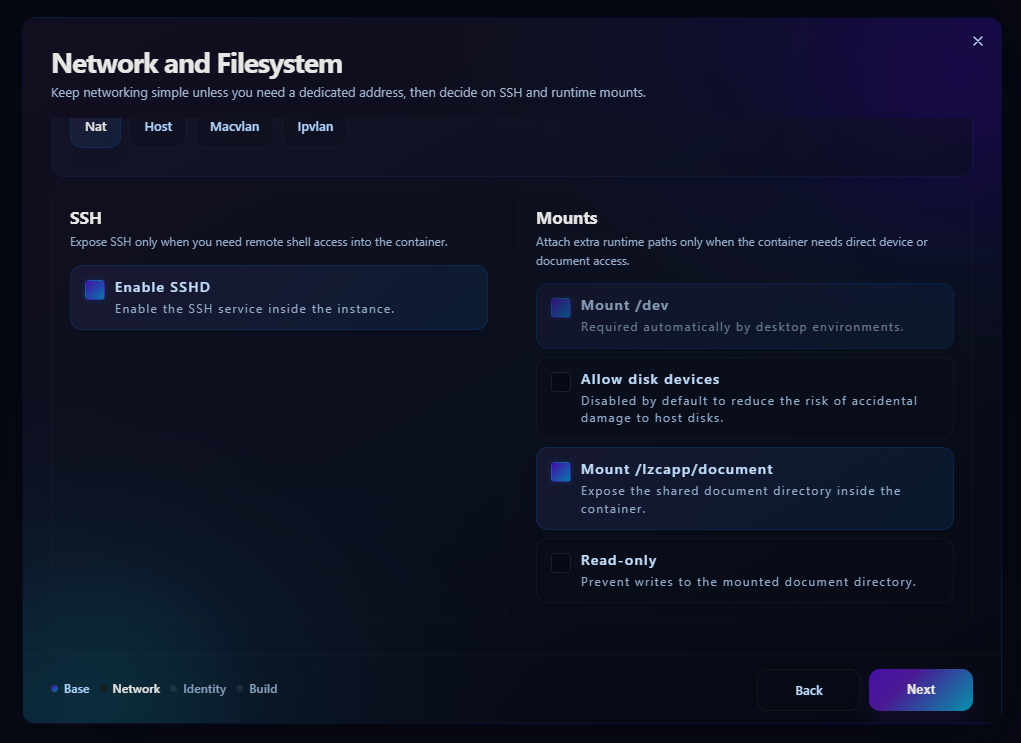
Step 4: Click Next and complete the settings for account.
os name: debian, customizable
Username: customizable
Password: customizable
Language: English.
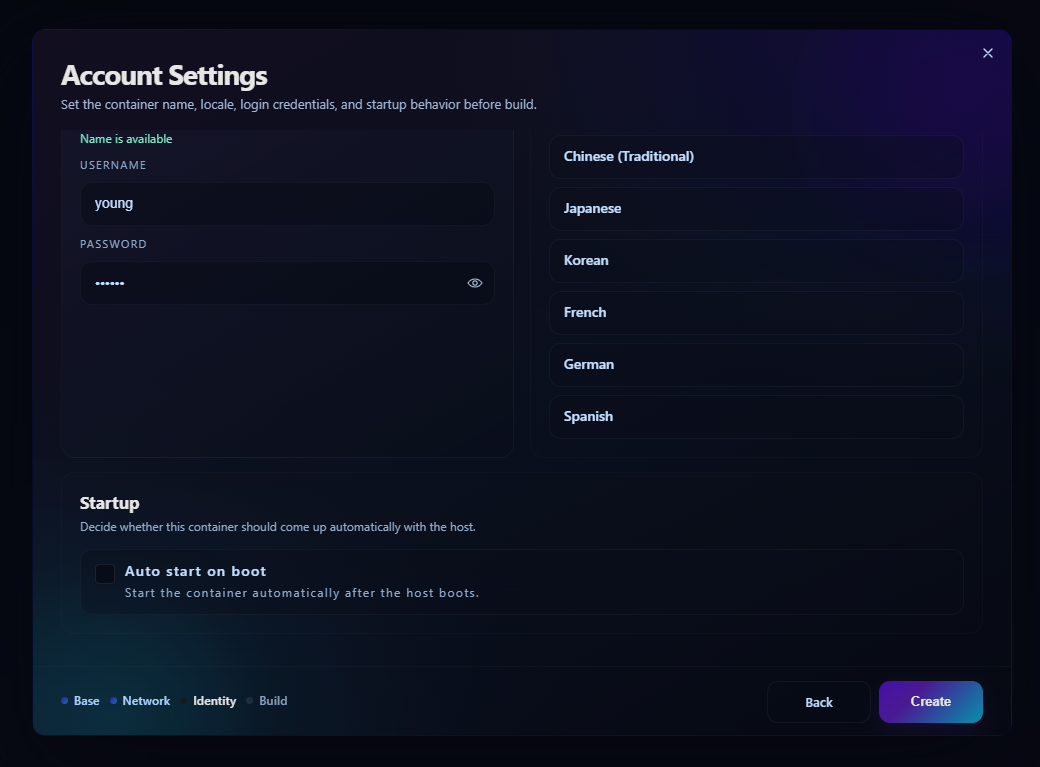
Step 5: And then click Create and wait for building. Once the build is complete, the interface will show a message indicating successful installation.
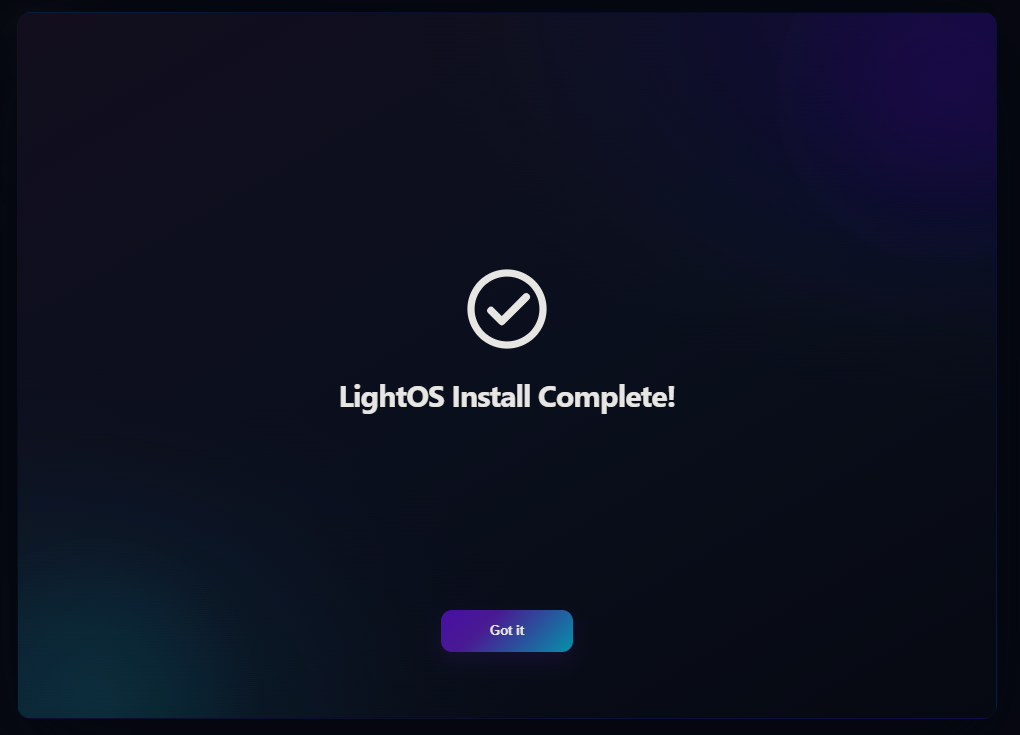
Step 6: Click Got it and back to homepage.
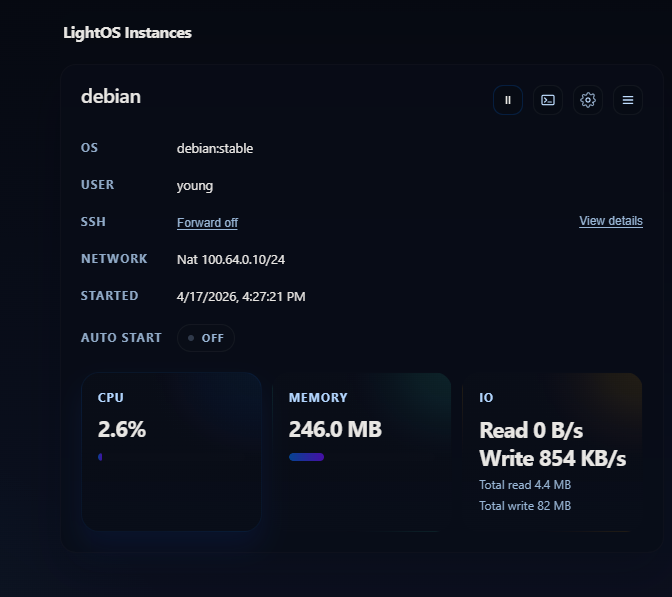
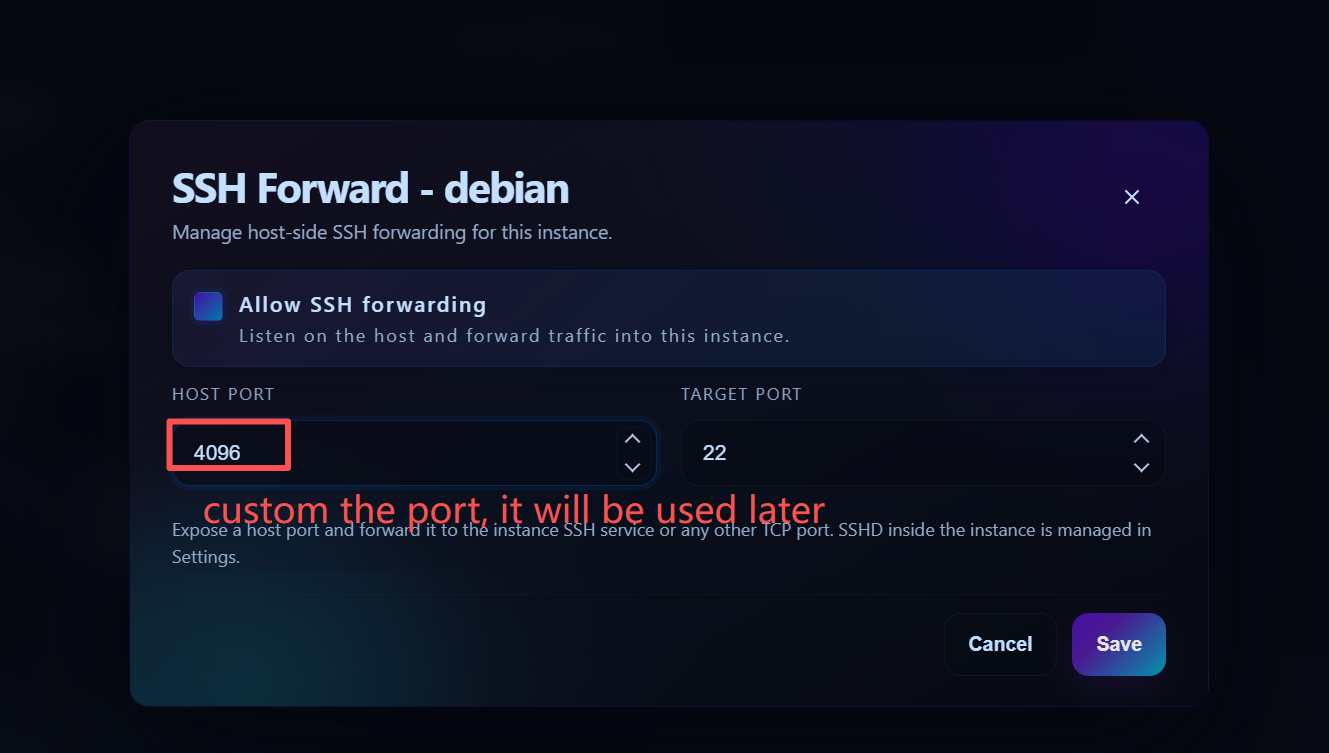
Step 7: Install XRDP. Enable SSH Forwarding first.
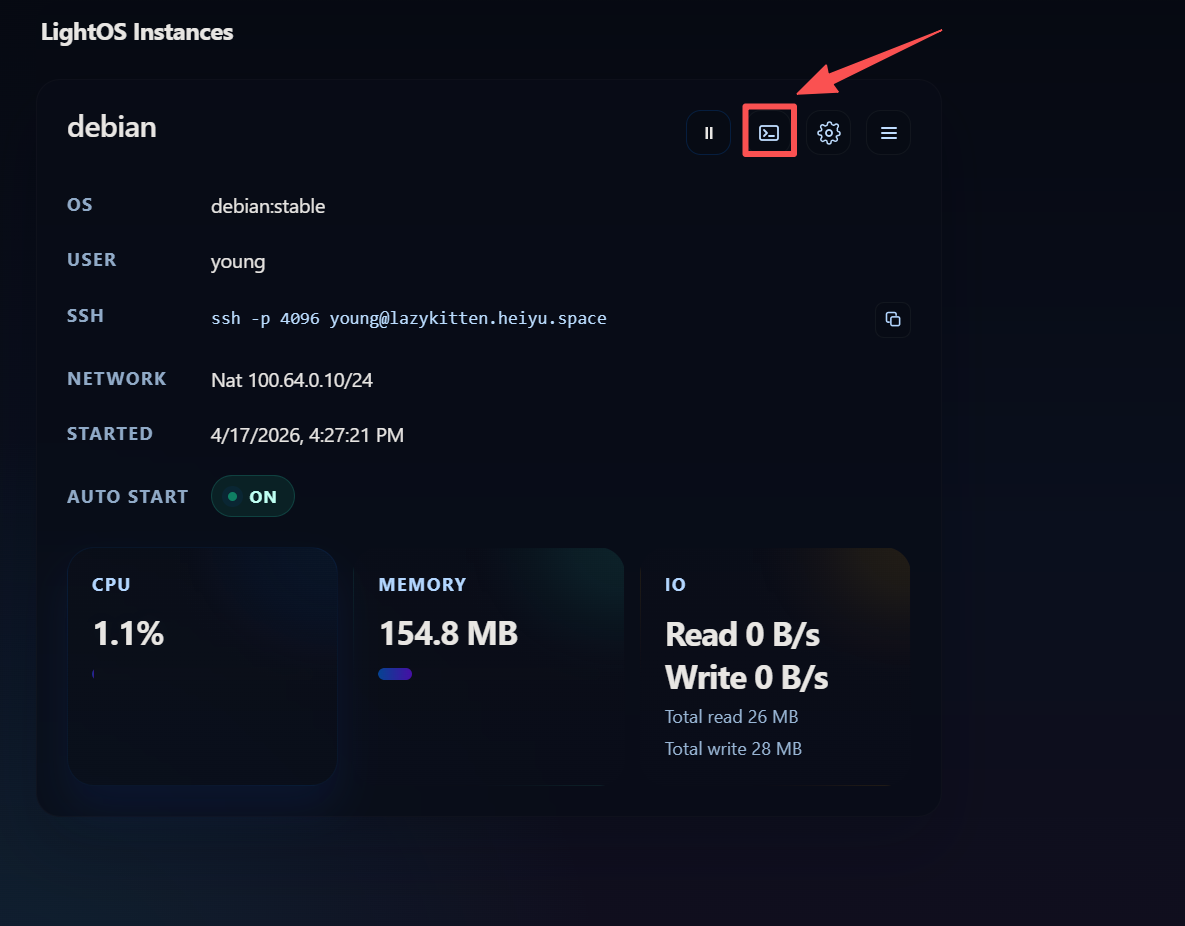
Step 8: Enter Webshell.
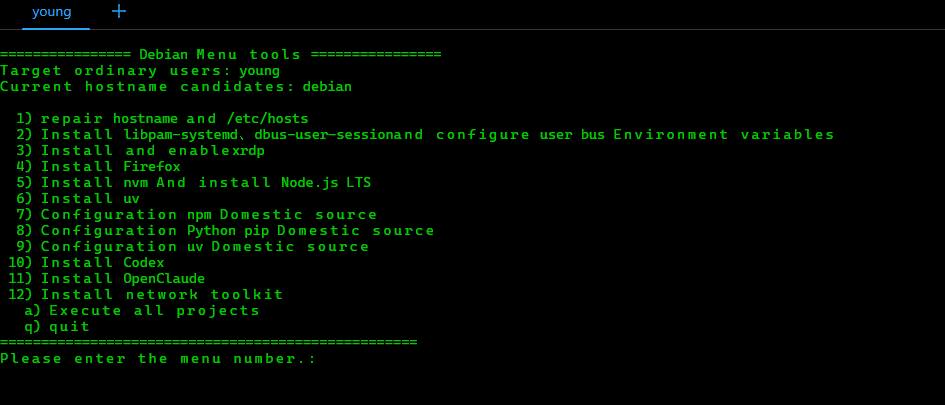
We provide a quick installation script that you can use to perform the download.
Execute the following command:
sudo apt update
sudo apt install -y wget
wget https://gitee.com/longxiaoyi-00/lzc-scripts/raw/main/fix-lightos.sh
chmod +x fix-lightos.sh
./fix-lightos.sh
Step 9: Start terminal and execute the following command:
Enter the address:{LCMD name}.heiyu.space
You can copy it directly from the LightOS main interface.
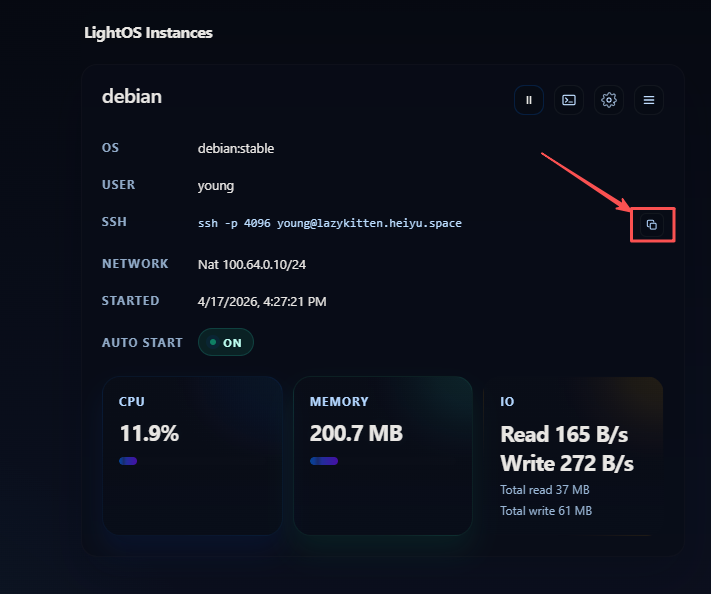
ssh -p 4096 {username}@{LCMDname}.heiyu.space -L 13389:127.0.0.1:3389

# This command forwards the LCMD's port 3389 to the local port 13389 via SSH forwarding.
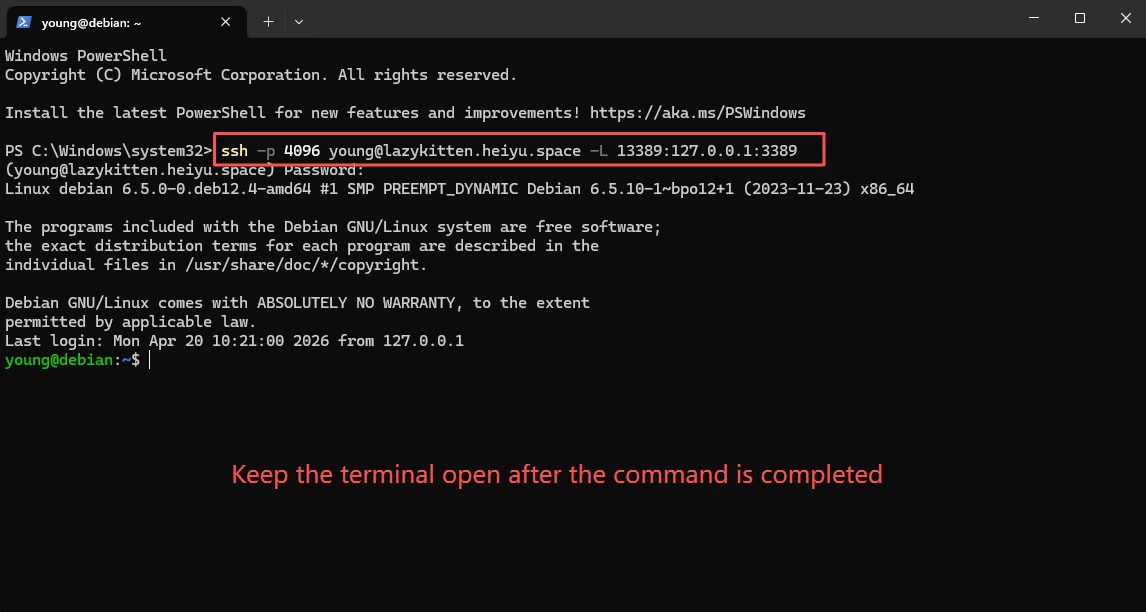
Step 10: Connect remote desktop
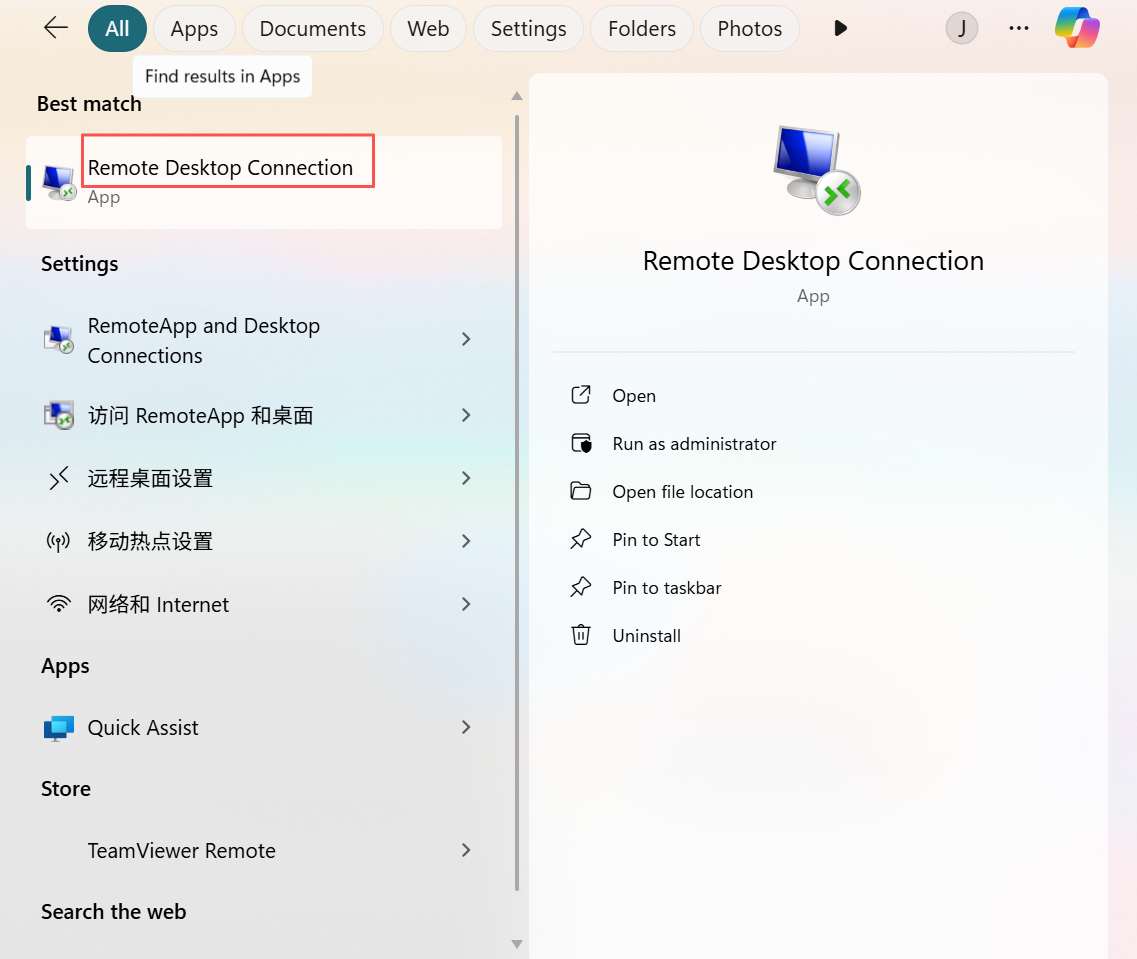
For Windows:
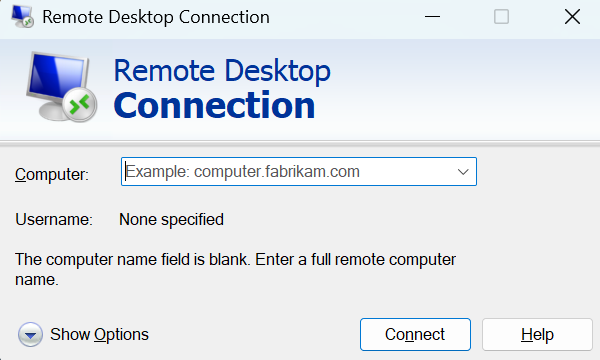
Use the built-in "Remote Desktop Connection", enter the address: 127.0.0.1:13389. Use the account username and password when creating the container.
For macOS:
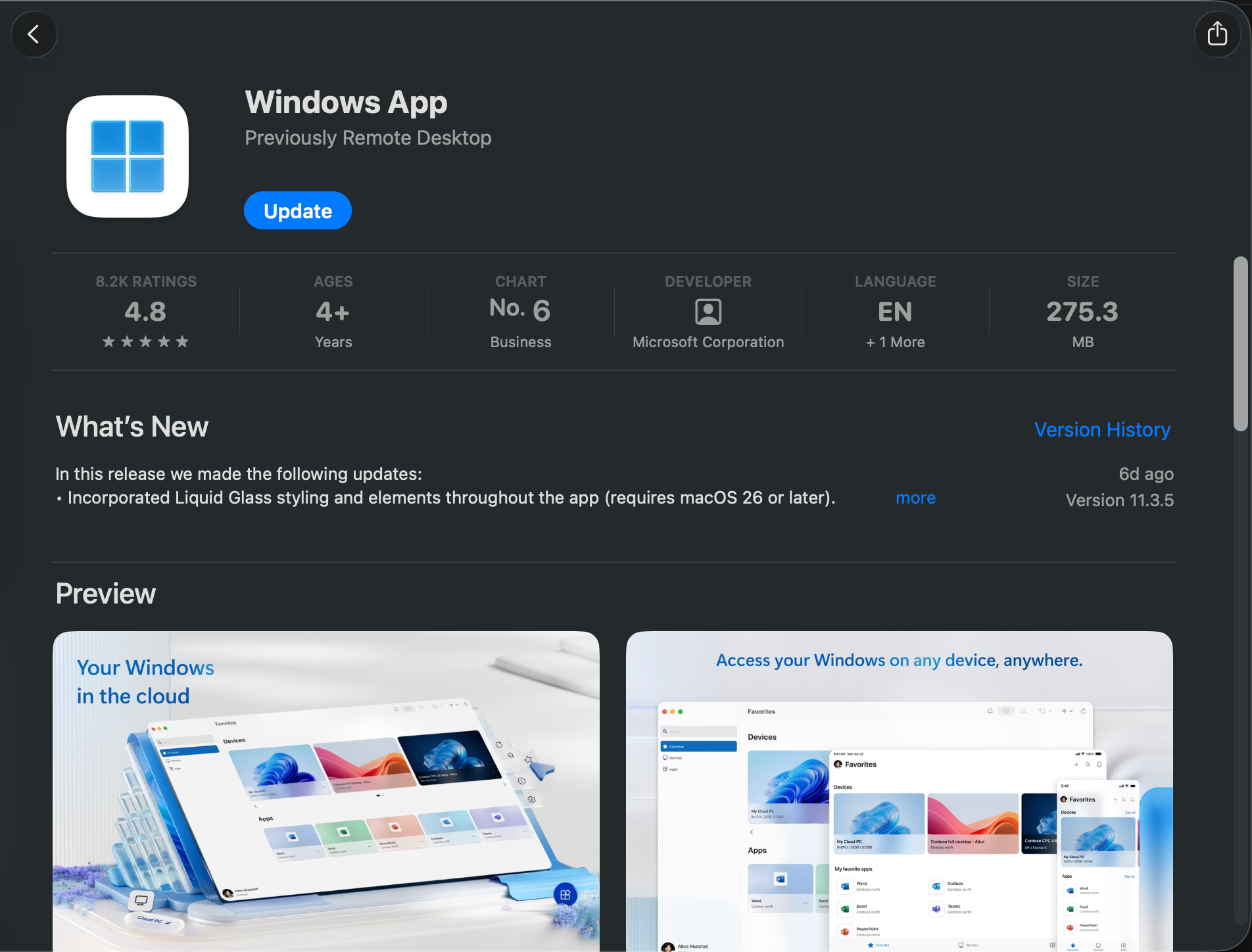
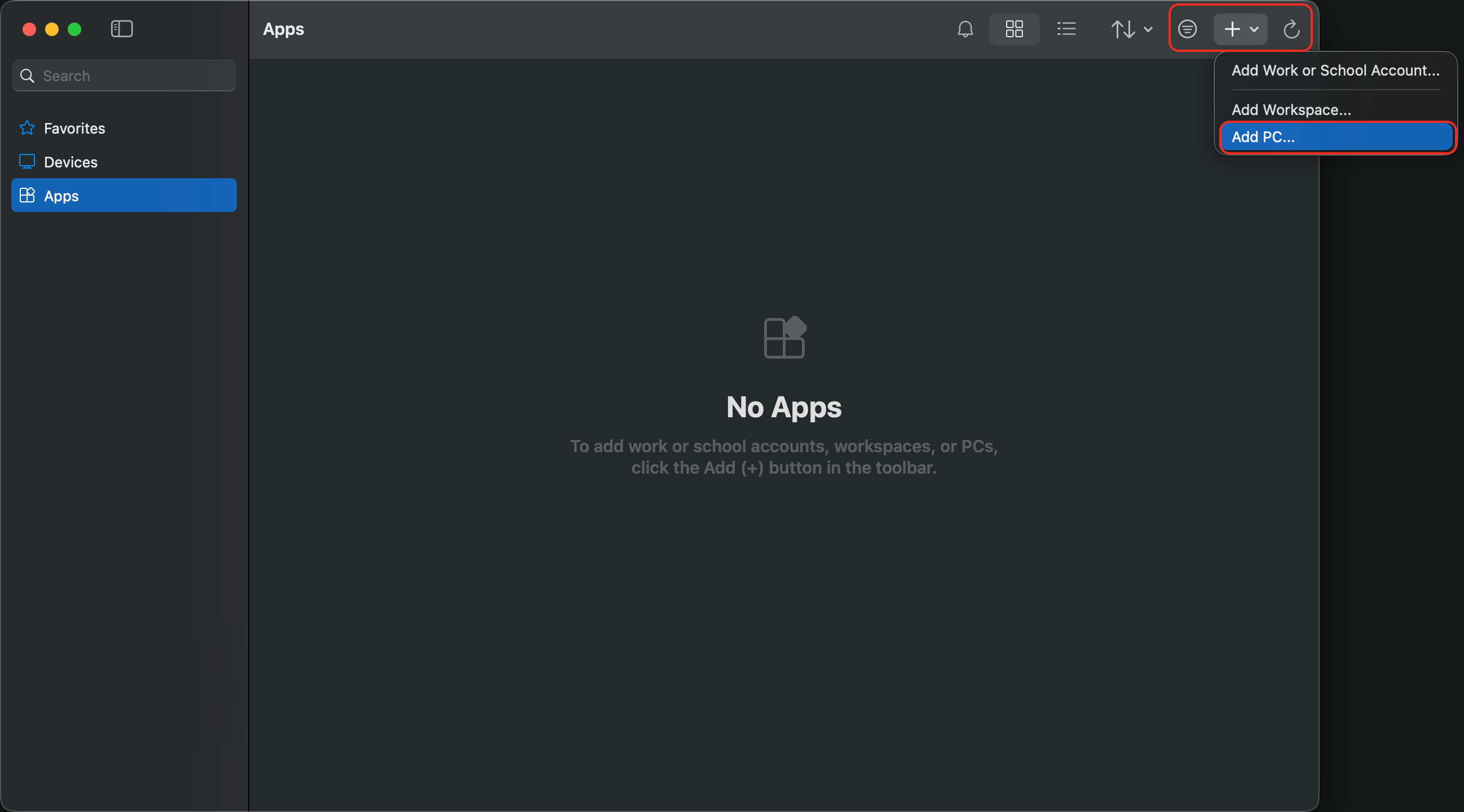
Use the Windows App to create a new Remote PC connection.
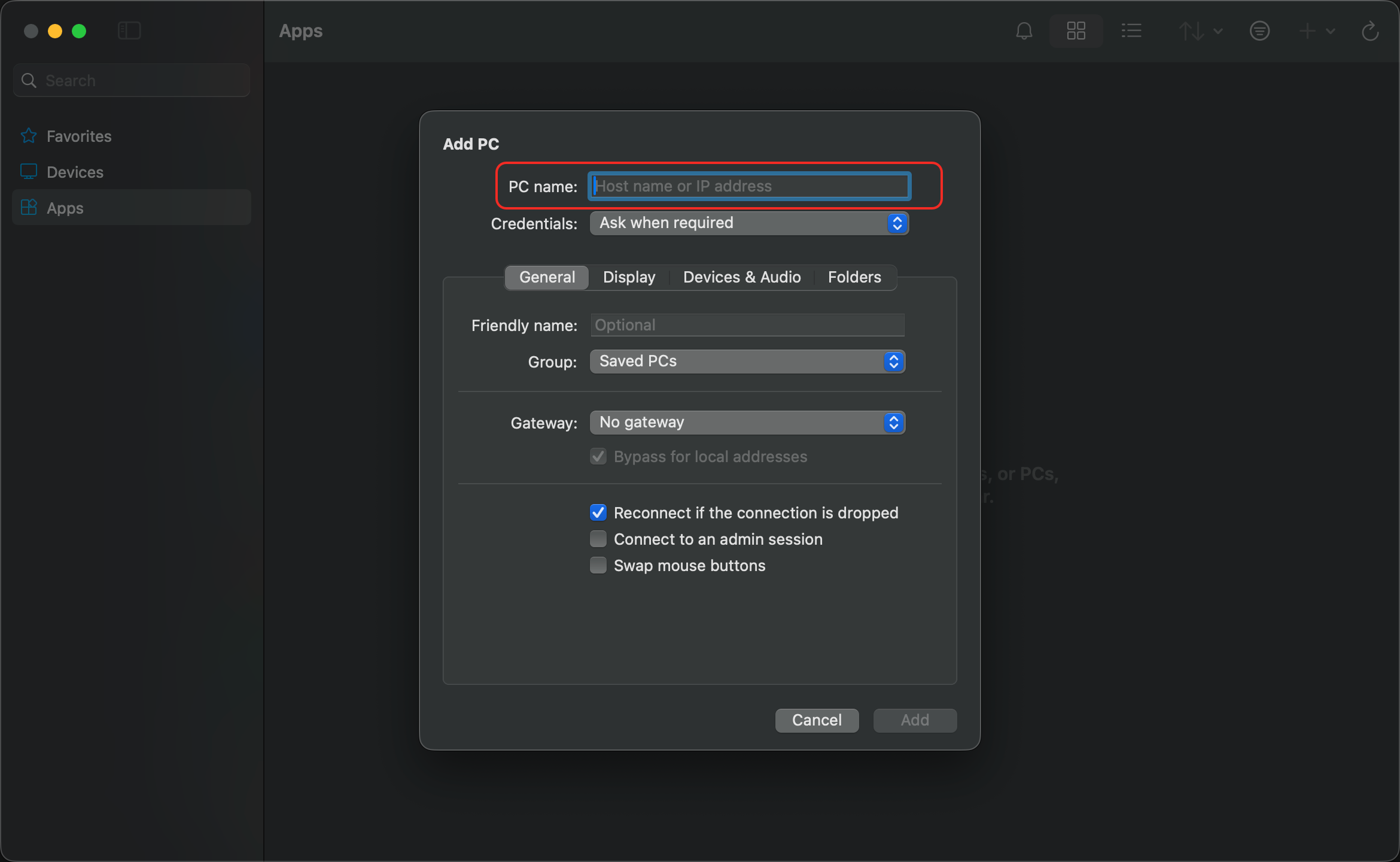
Enter the address as 127.0.0.1:13389
4. Other Use Cases
As an HDMI desktop host
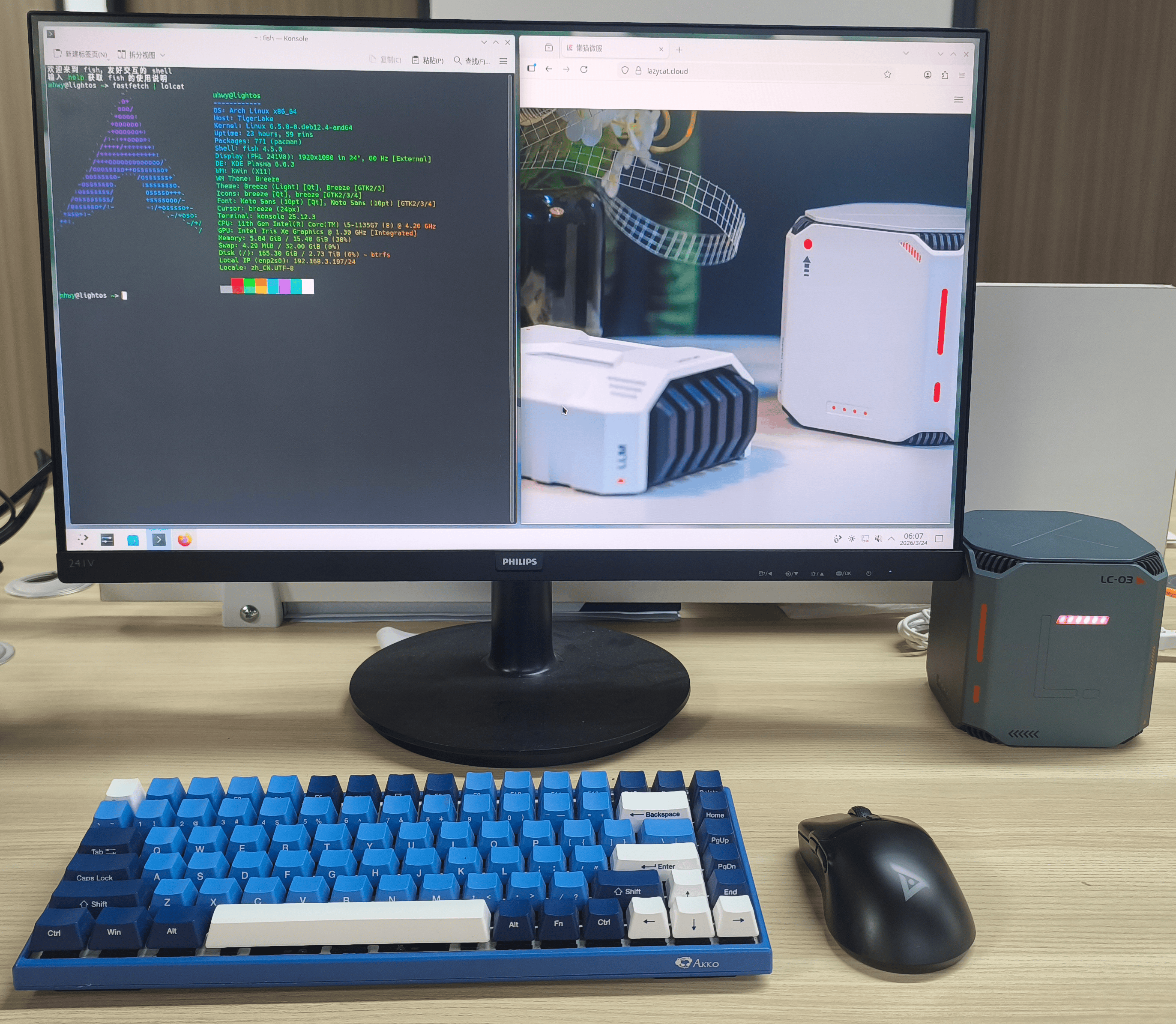
By connecting LCMD and monitor with an HDMI cable, and then using a keyboard and mouse, you can use LightOS as a desktop host.
Recommendations:
Prioritize KDE for your desktop environment;
Enable automatic startup as needed;
If you have multiple desktop containers, be aware that they may compete for the HDMI port;
The LCMD Smart TV will also use the same HDMI port.
If you don't see the expected desktop display after plugging in the monitor, you should usually check if another container is using the HDMI port.
5. Settings Reference
(1) Settings for basic page
Arch Linux: Rolling updates, suitable for users familiar with Arch.
Debian Bookworm: Debian 12
Debian Bullseye: Debian 11
Debian Stable: Current stable version, suitable for most users.
Debian Testing: Beta version, not recommended for beginners.
Custom: Suitable for users with specific needs, who can specify their own OCI image.
Recommendations:
Beginners should prioritize Debian Stable. For a reliable remote desktop environment, choose a Debian-based image, and only consider using a custom image if you fully understand its source, package management system, and system initialization method.
Image Registry:registry.lazycat.cloud: Official LCMD repository, recommendeddocker.1ms.run: Image acceleration repositorydocker.io: Official Docker repository
Custom: Use your own image repository
Base packages:
Developer Basic Tools: Basic Development Environment
Golang: Go Development Environment
Node & NPM: Dependencies for front-end and some AI tools, recommended
Common CLI Tools: Common command-line toolset, recommended
hclient-cli: Use a LCMD client on the system
yay: Arch Linux only
Codex CLI: Optional, install on demand
Claude CLI: Optional, install on demand
KDE / XFCE: Desktop environment (choose one)
Recommended Desktop Environment:
For remote desktop, XFCE is preferred.
For HDMI desktop hosts, KDE is preferred.
Mainland mirrrors:
NPM: Recommended to enable it if Node and NPM are selected.
Golang: Recommended to enable it if Golang is selected.
System package source: Choose either USTC or TUNA. keeping the default is also acceptable.
(2) Settings for Network & File system
Network mode
NAT: The most reliable by default. Port forwarding is required when accessing internal ports from the outside.Host: Shares the network with the LCMD. Offers greater capabilities, but improper operation may affect the host network.MacVlan: Independent IP address and MAC address. Typically cannot directly access other services on the host.IPVlan: Independent IP address and reuses the host's MAC address, not supported by some routers.
SSH
It is recommended to leave this feature enabled by default. If you need to modify it, please verify port availability in the interface.
Mounts
/dev: Generally recommended for desktop environments.Allow Disk Device: Only enable it when you need to access external USB drives or portable hard drives.Mount /lzcsys/data/document: Mount LCMD Cloud Drive into the container, recommended.Read-Only: When checked, this option allows reading only. The mounted content can not be altered.
WebShell
WebShell is ideal for remote command execution, cross-device operation between mobile and desktop, as well as maintaining persistent terminal sessions.
Important Notes: In a browser environment, some keyboard shortcuts may conflict with browser defaults. For example, shortcuts such as Ctrl+W may close the page. After closing the browser window, the terminal session will persist and can be restored when reopened.
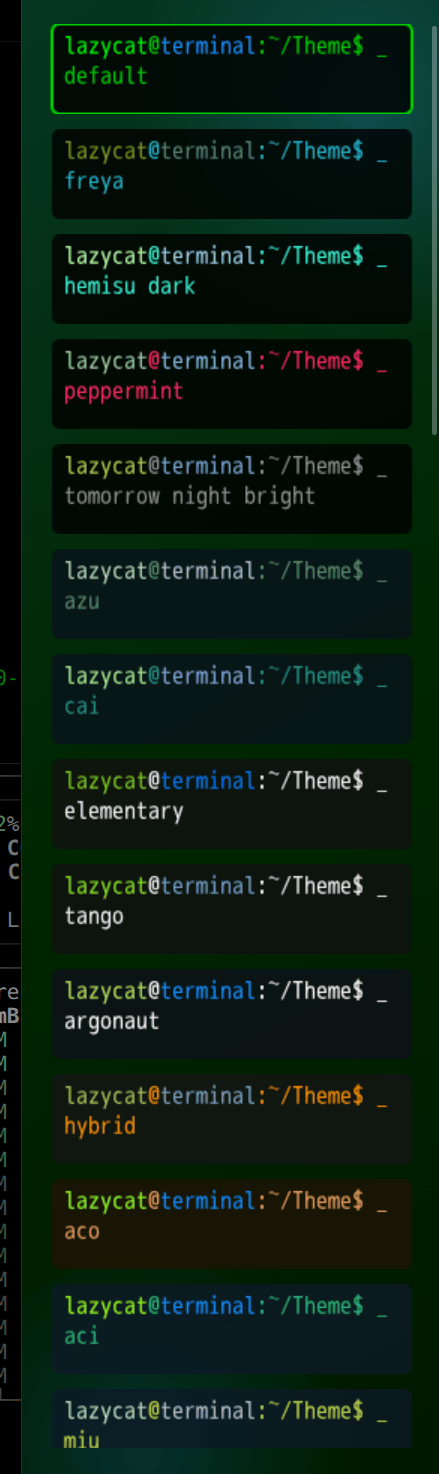
The terminal supports multiple tabs and tmux-style split-screen functionality.
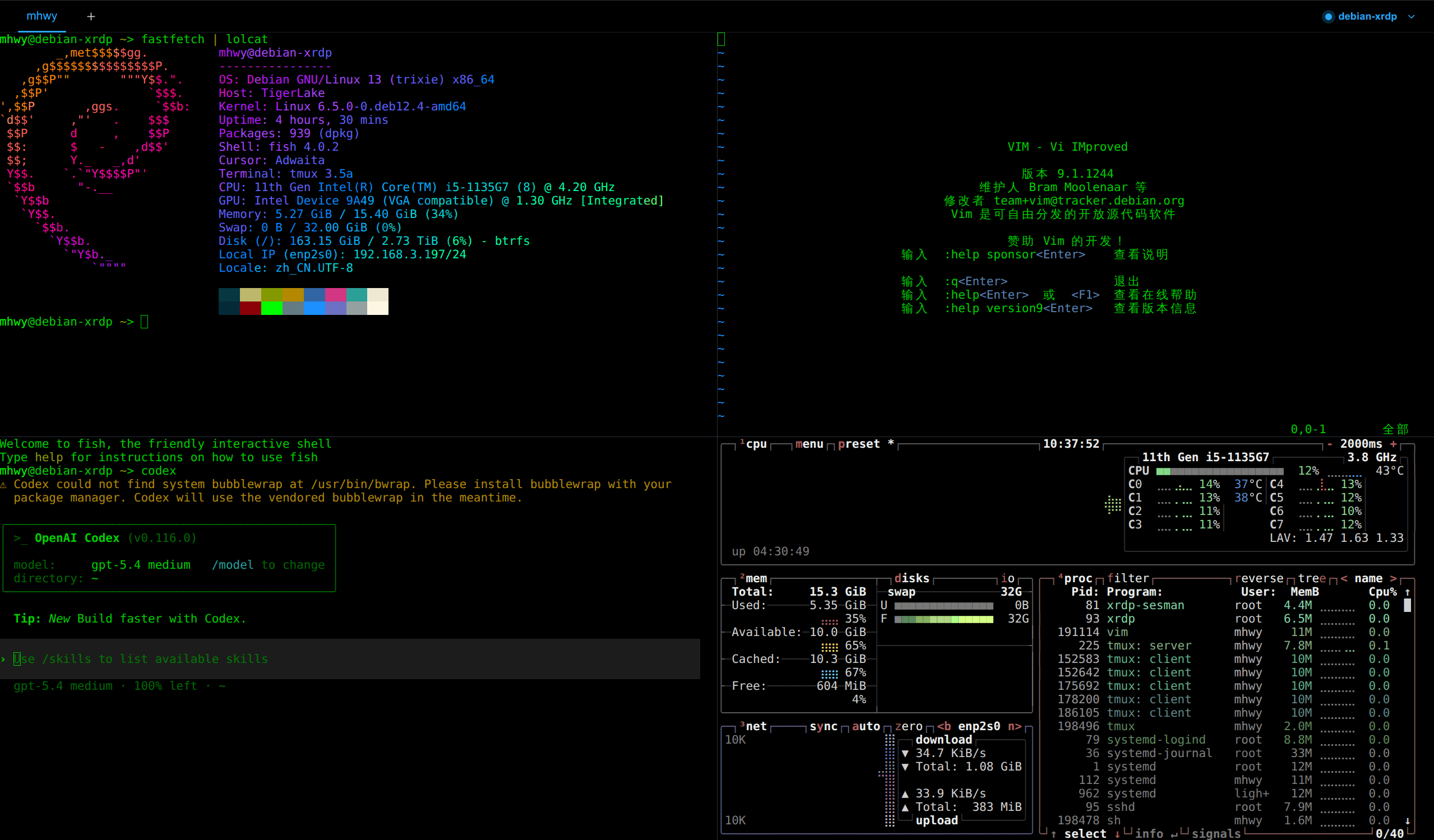
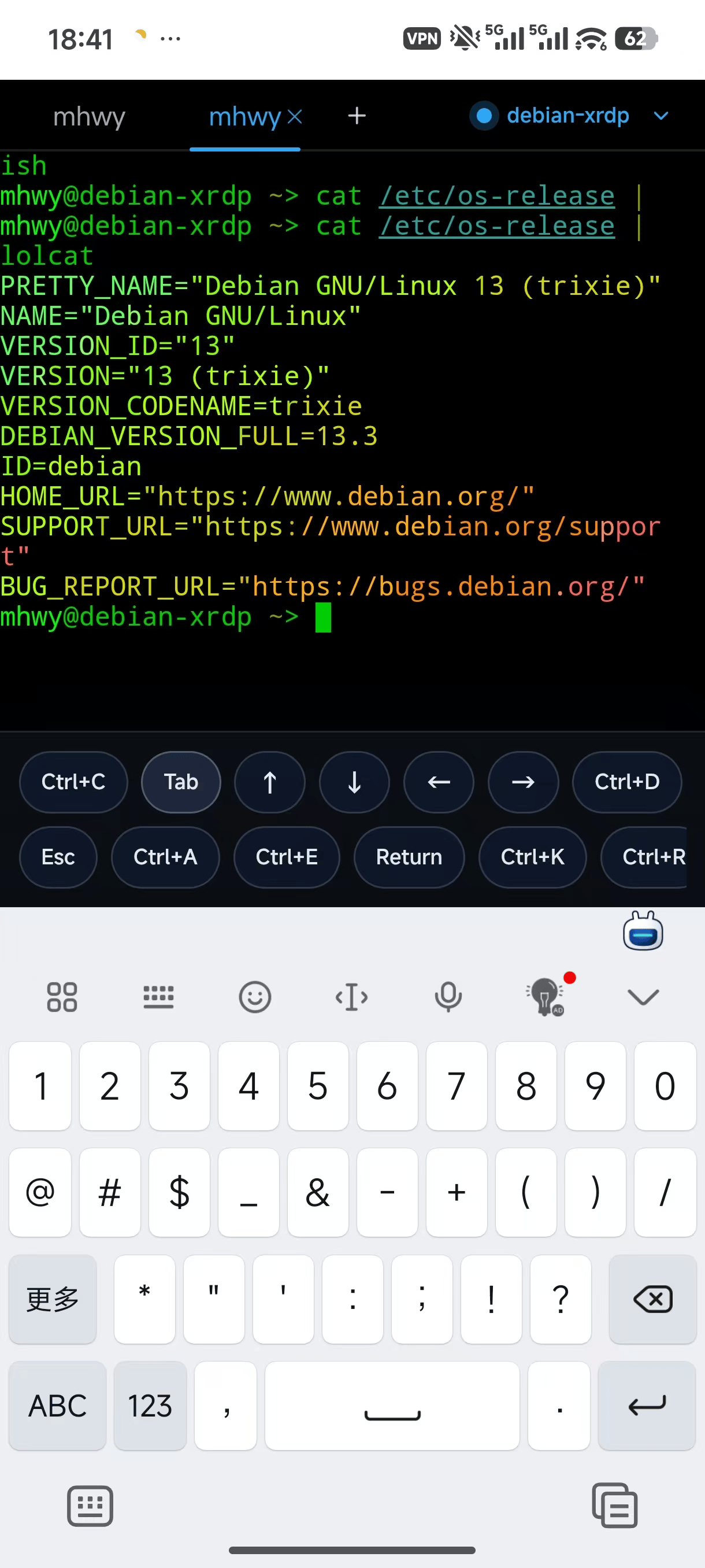
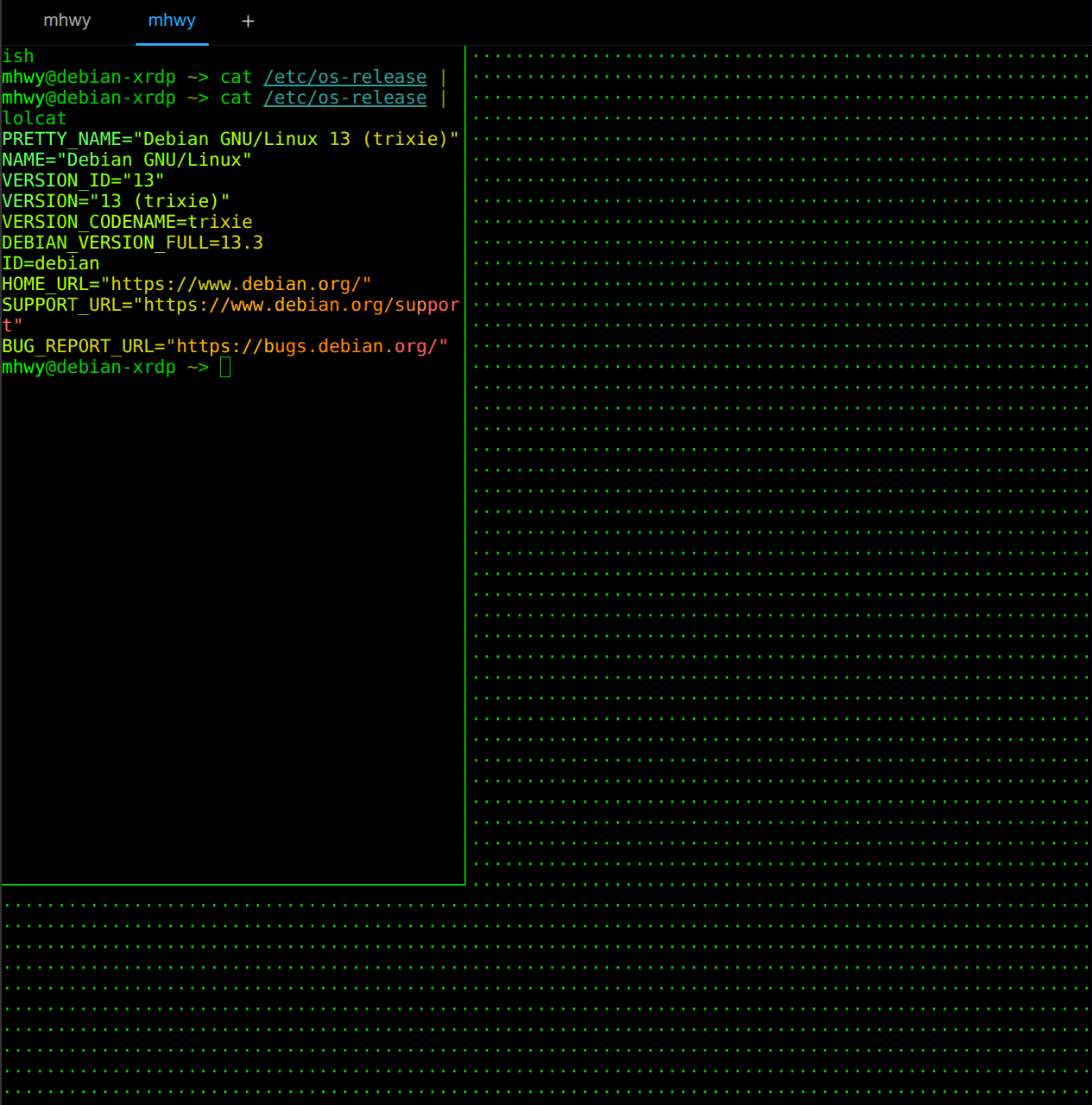
Mobile phone and computer can share the same terminal:
| Mobile Phone | Computer |
|---|---|
 |
 |
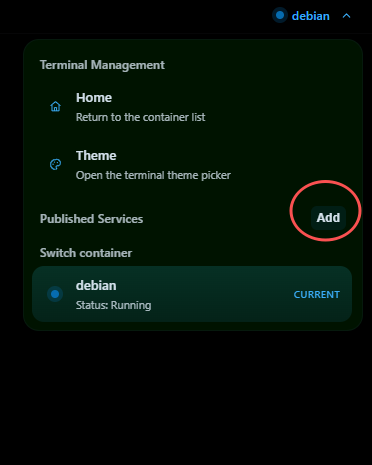
If you have multiple containers, you can also switch the container or return to the homepage in the upper right corner.
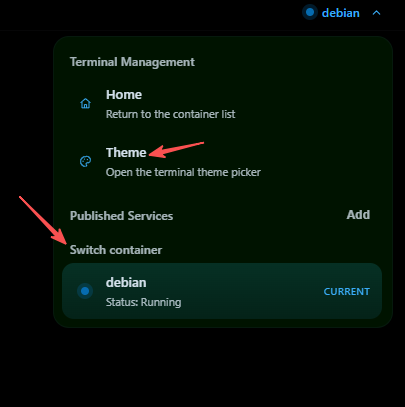
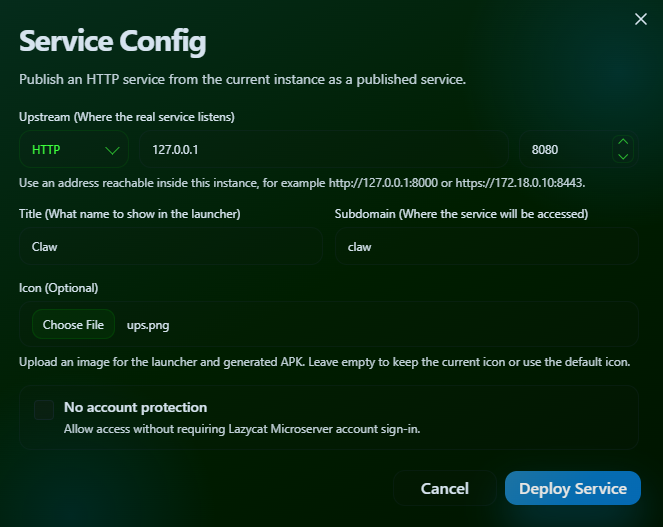
Publish Services
Click the "Add" to forward your local service to the LCMD and generate an application.
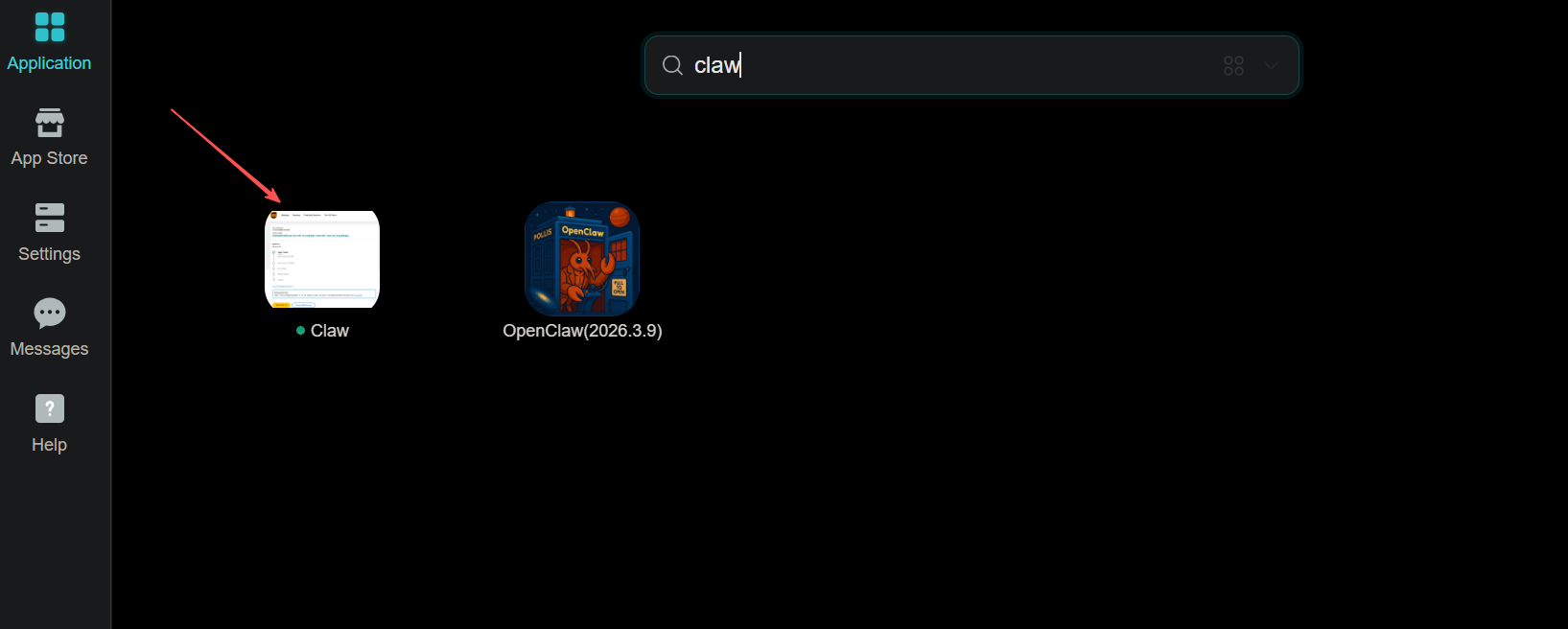
You will see the application displaying in your applications.
SSH
SSH is ideal for direct connections to LightOS containers from a local terminal, as well as for use with IDEs and automated script-based operations. The copy button on the main page can generate the connection command instantly.
Clone and Delete
Clone: Uses the current system configuration and state as a template to quickly copy a new container.
Delete: Completely deletes the current container.
6. FAQs
(1) Why can I create a system, but cannot connect to the remote desktop?
Troubleshooting:
Is XRDP installed and running?
Is the container network mode suitable for remote access?
Is port 3389 already in use?
Is the connection address entered correctly?
(2) Why isn't my desktop displaying the one I want?
This is usually because multiple desktop containers or Smart TV are competing for the HDMI port.
(3) What's the difference between WebShell and SSH?
WebShell: Ready to use immediately.
SSH: More suitable for local terminals, IDEs, and scripted usage.
(4) When to use snapshots?
It is recommended to manually create a snapshot before installing a desktop environment, installing softwares in bulk, or modifying system configurations.