Totoro - Create Your Own AI Assistant
1. Create AI Assistant
I'll demonstrate the process of creating an assistant for Hermes.
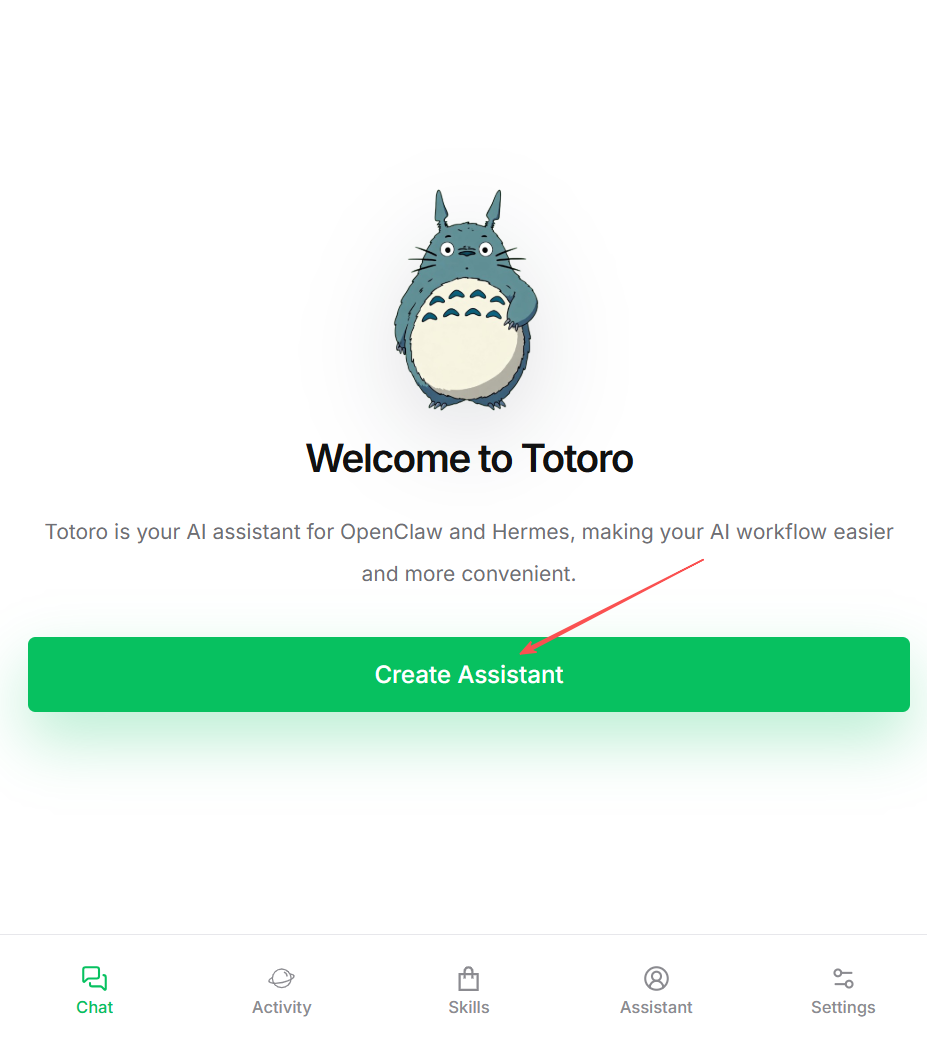
First install and open it the App Totoro. Then click "Create Assistant".
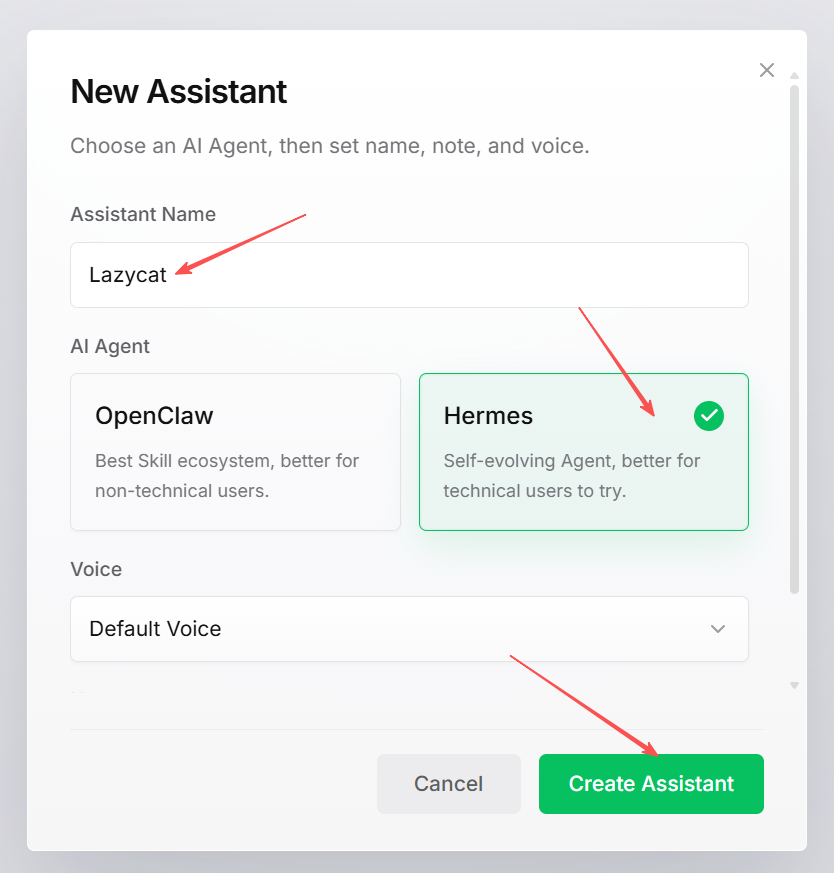
Enter the name of assistant and select the AI agent, and click Create Assistant.
Add AI provider.
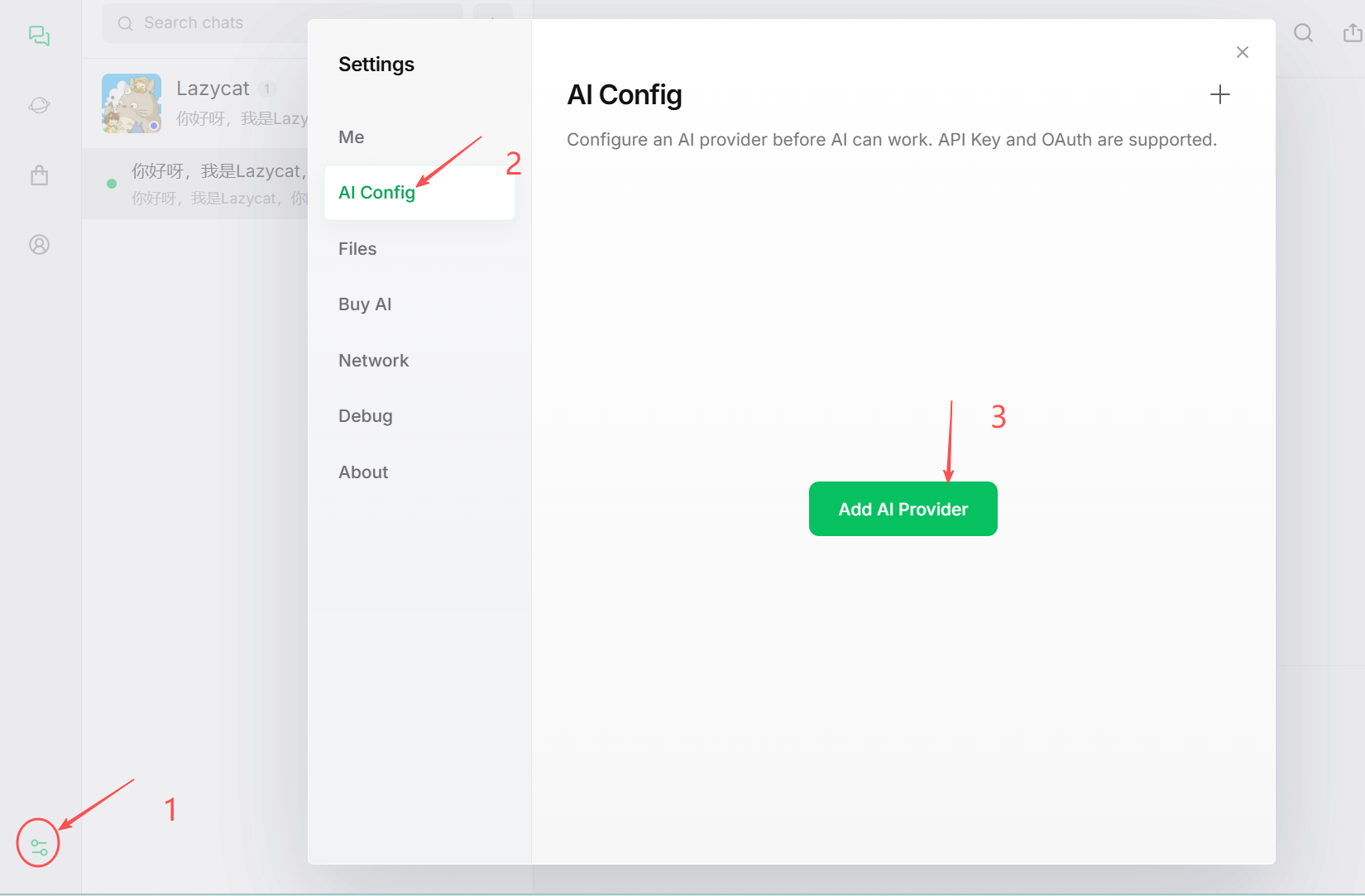
After entering the provider's name, API URL, API Key, click the dropdown menu to select the model you want to use. I've selected gpt-5.5 here.
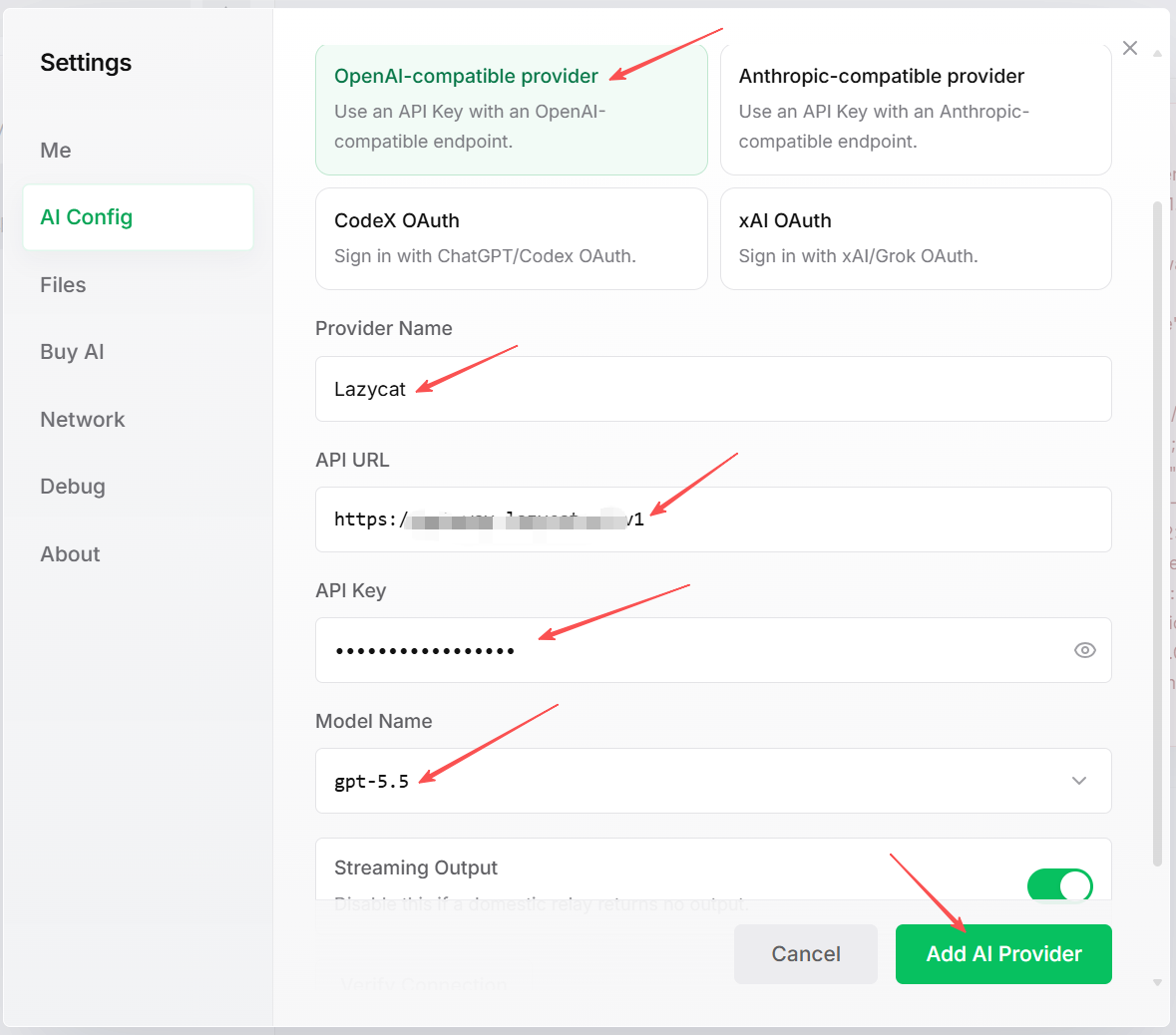
Then click Quick Check on the top to verify the status.
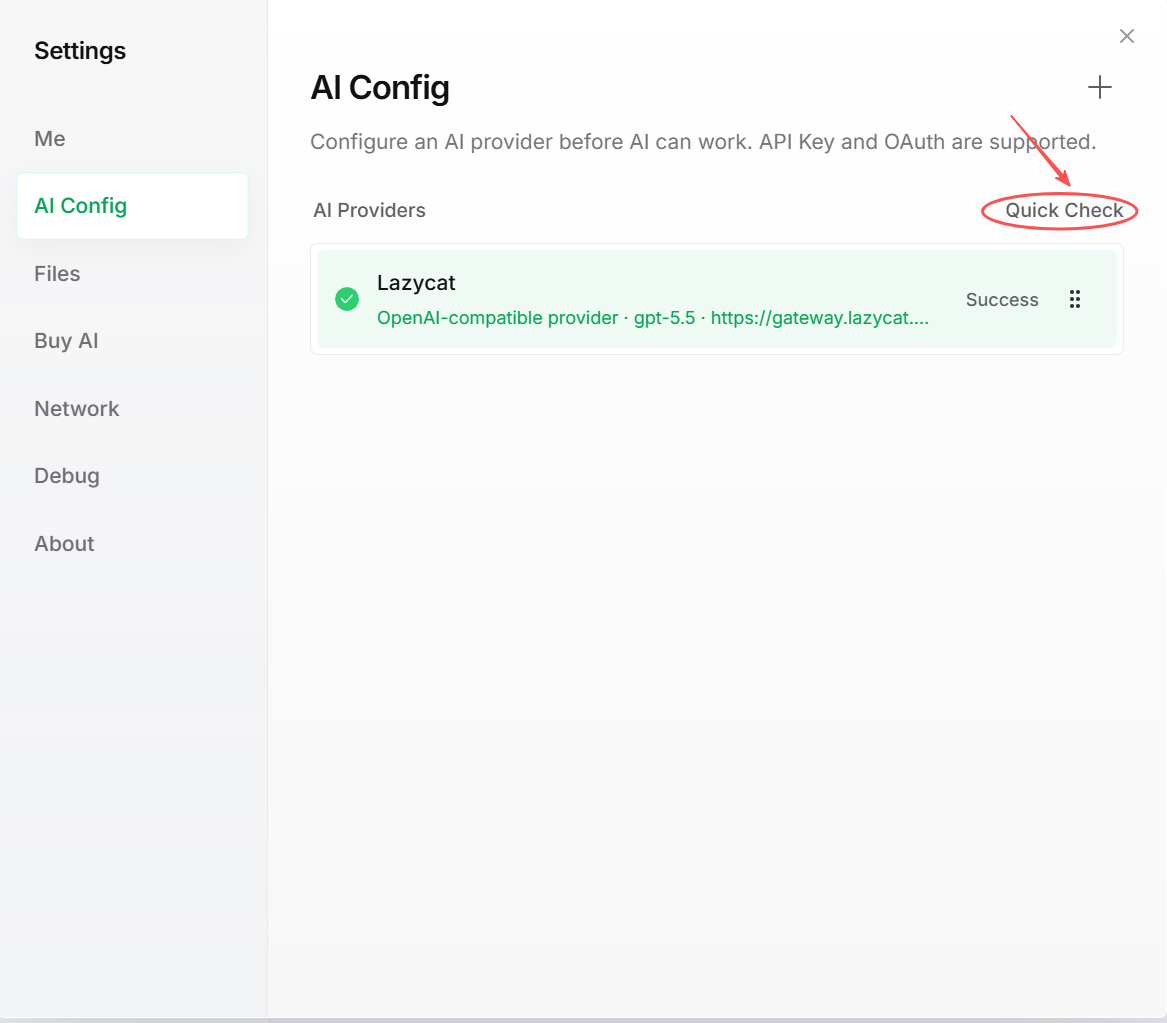
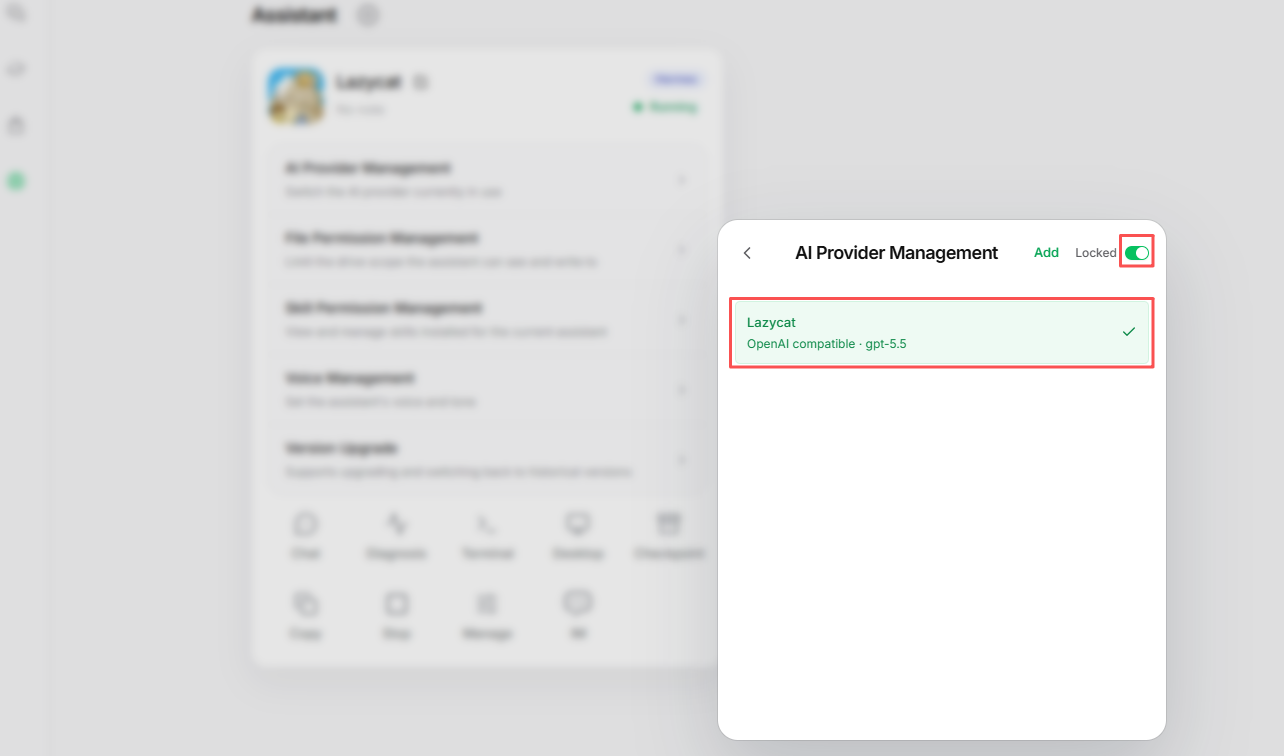
If there are multiple providers, clicking here will switch between all the providers used by the AI assistants. If you want to specify a particular AI assistant that does not follow the global settings, you can lock the AI provider used in the AI assistant's management interface.
We can check the providers currently used by the AI assistant.
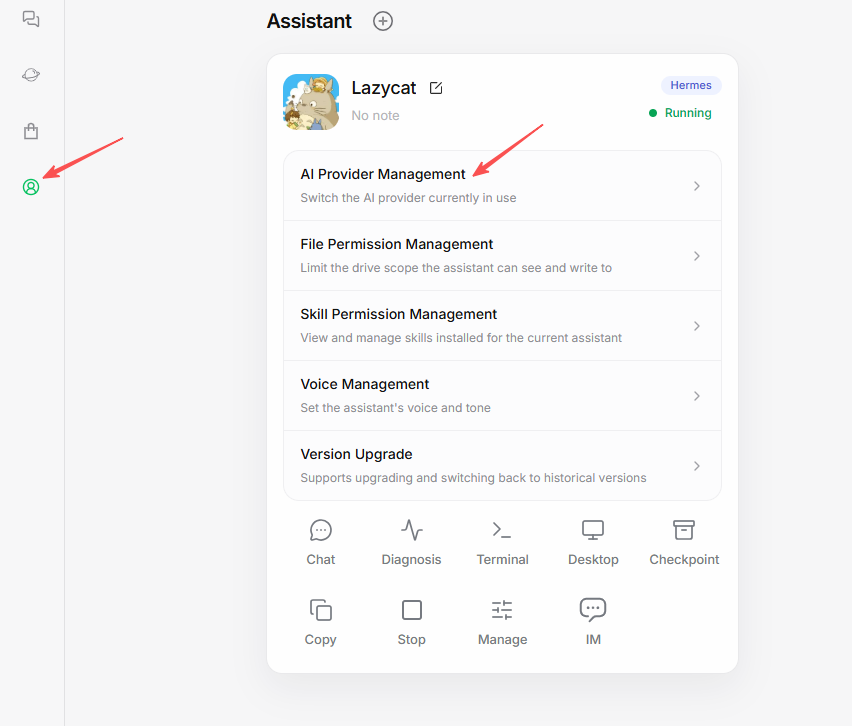
Here we locked gpt-5.5
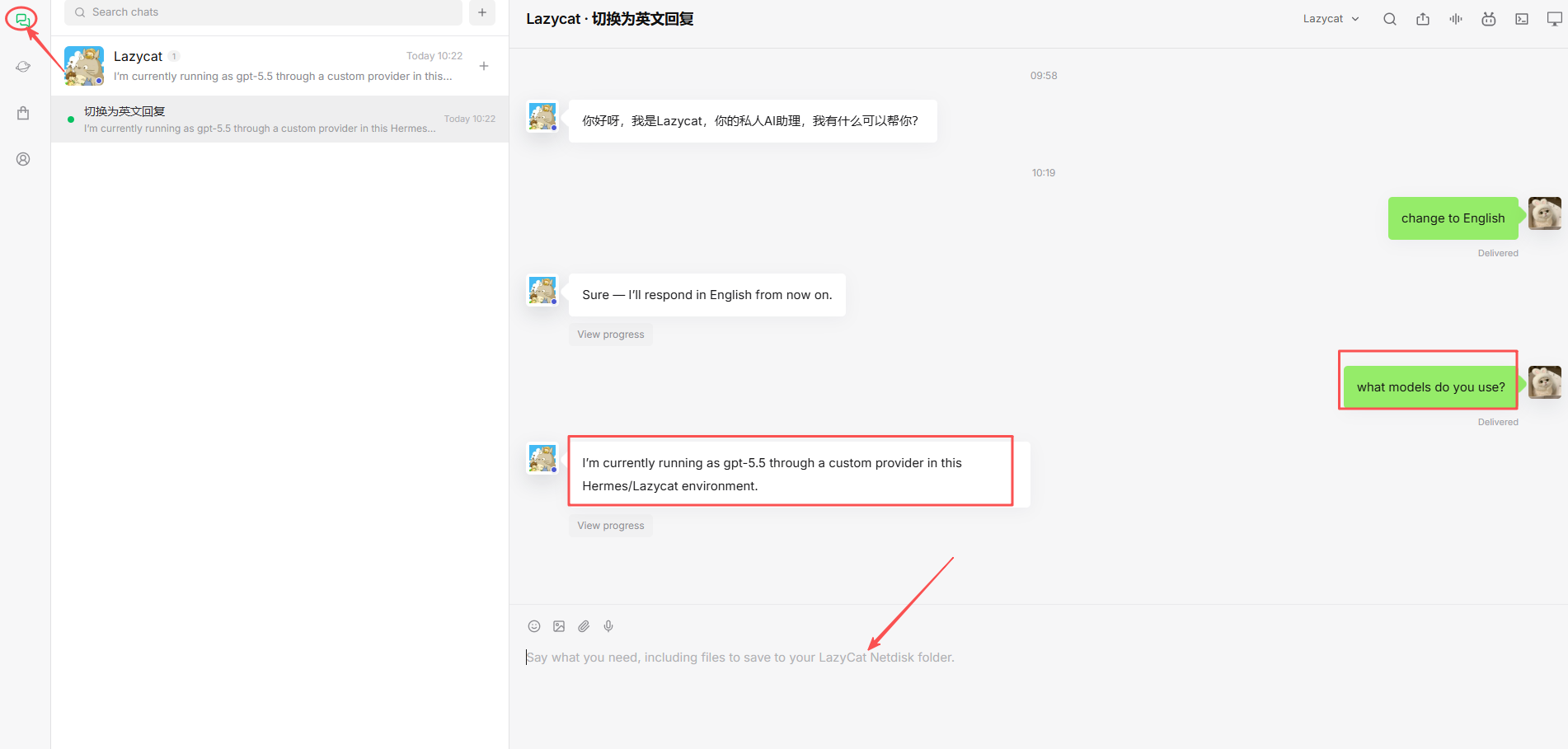
Once configured, you can chat with our assistant.
2. Configure Chat App
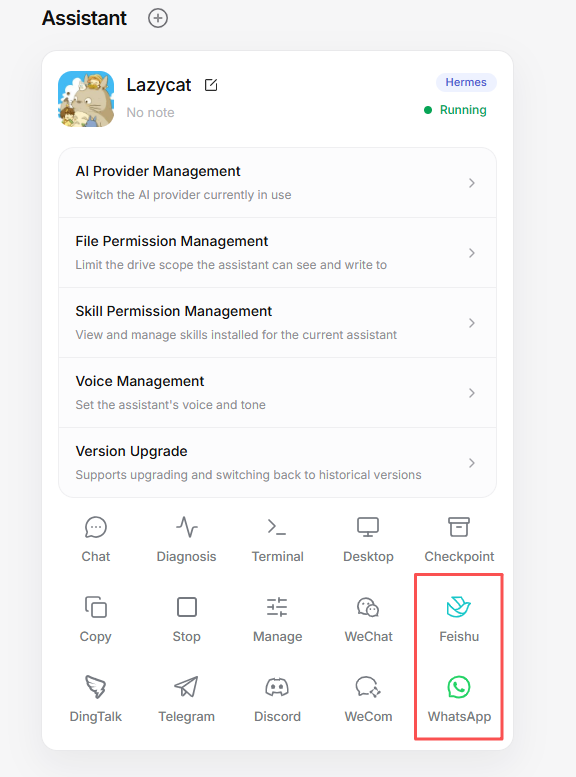
You can click on the chat software you want to link on the assistant's settings page.
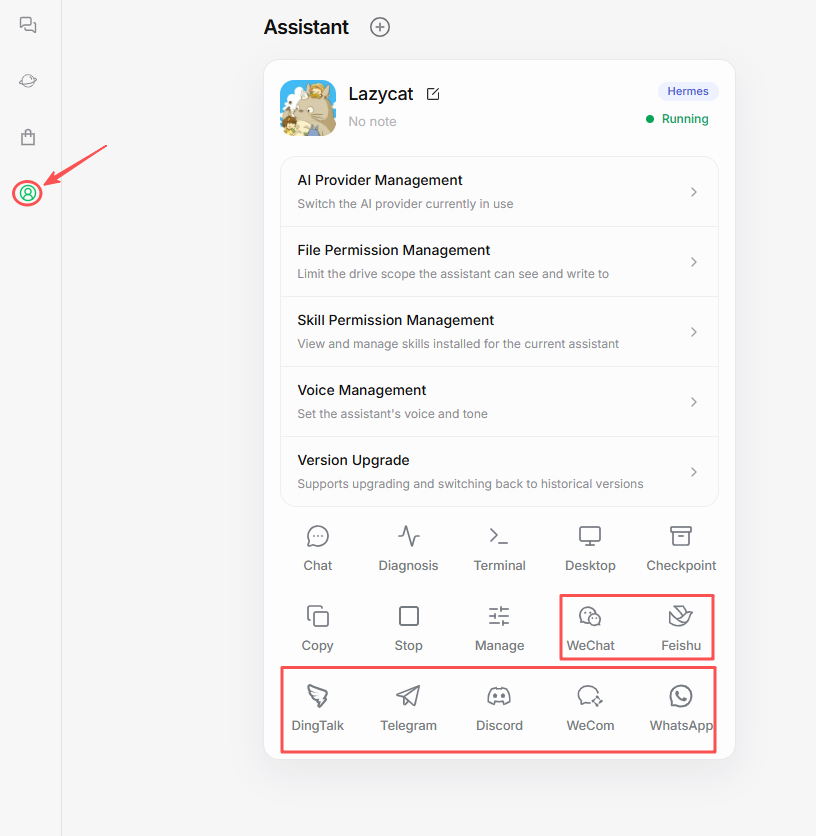
You may have to wait a while depending on network conditions.
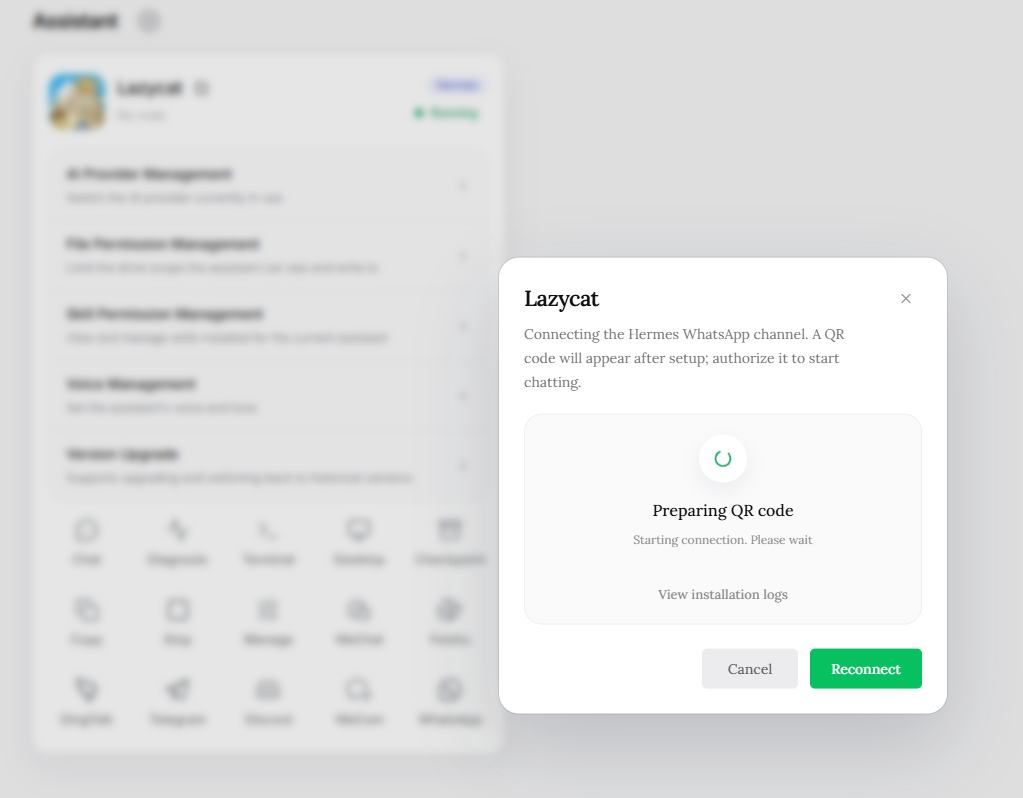
Then scan the QR code with your mobile phone to authorize. Once configured successfully, the icons of chat apps that have been logged into will be distinguished by color.
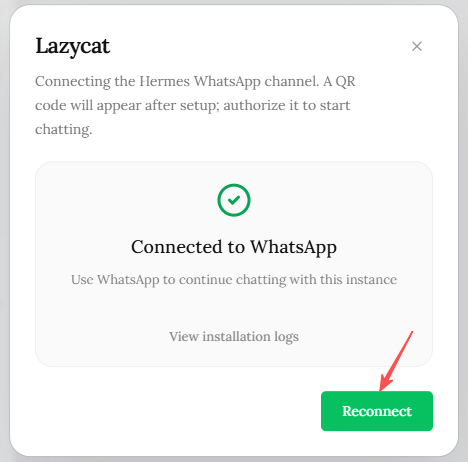
If you need to re-bind, click the Reconnect button again.
3. AI Assistant Upgrade
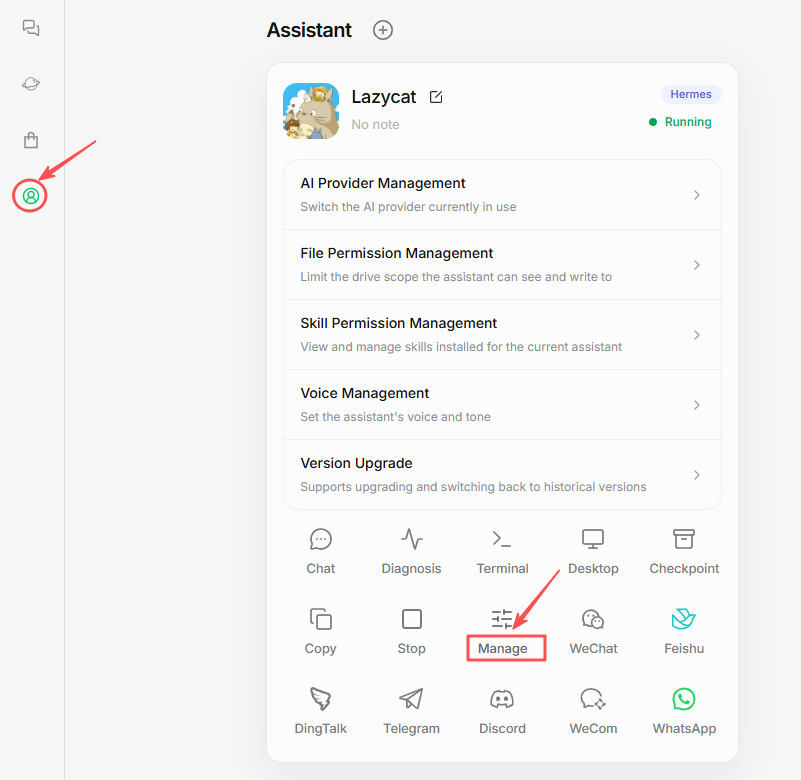
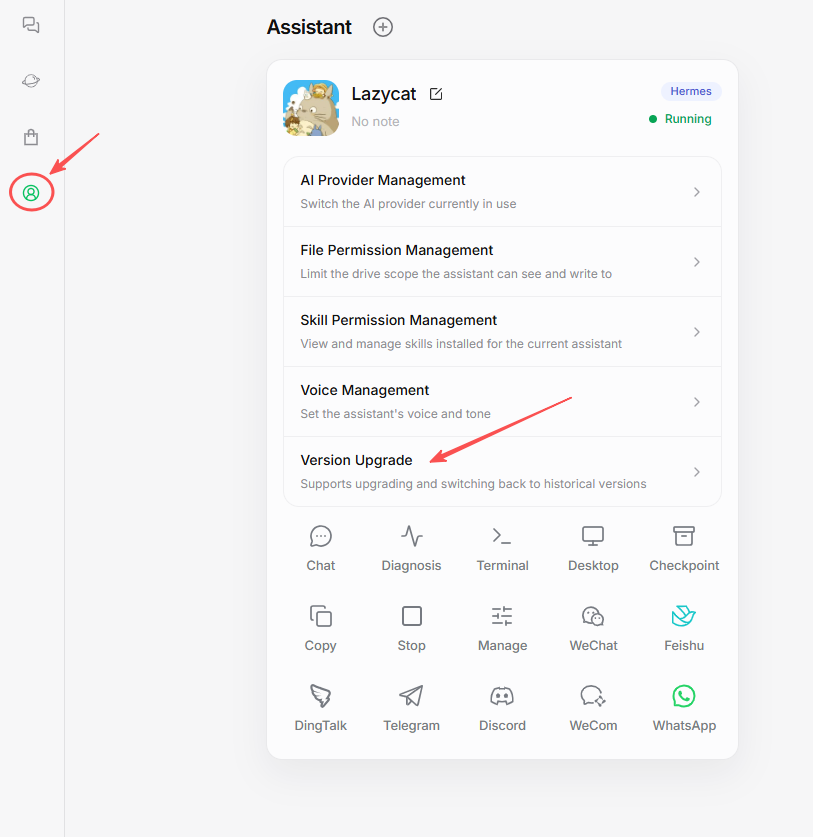
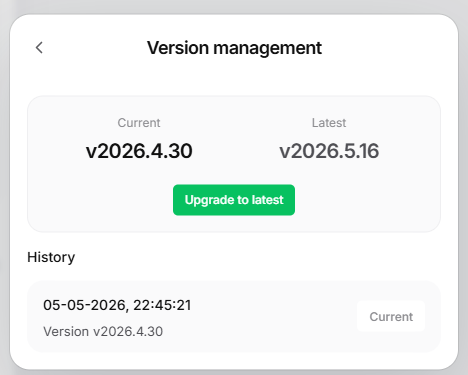
To update the AI assistant, go to the AI assistant settings page and click "Version Upgrade".
4. AI Assistant Accesses the Cloud Drive
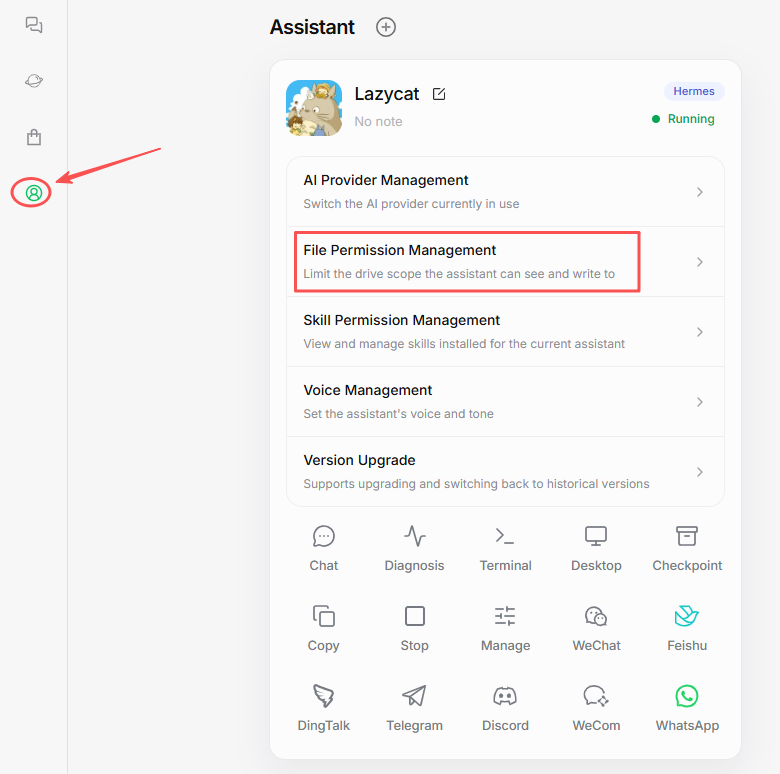
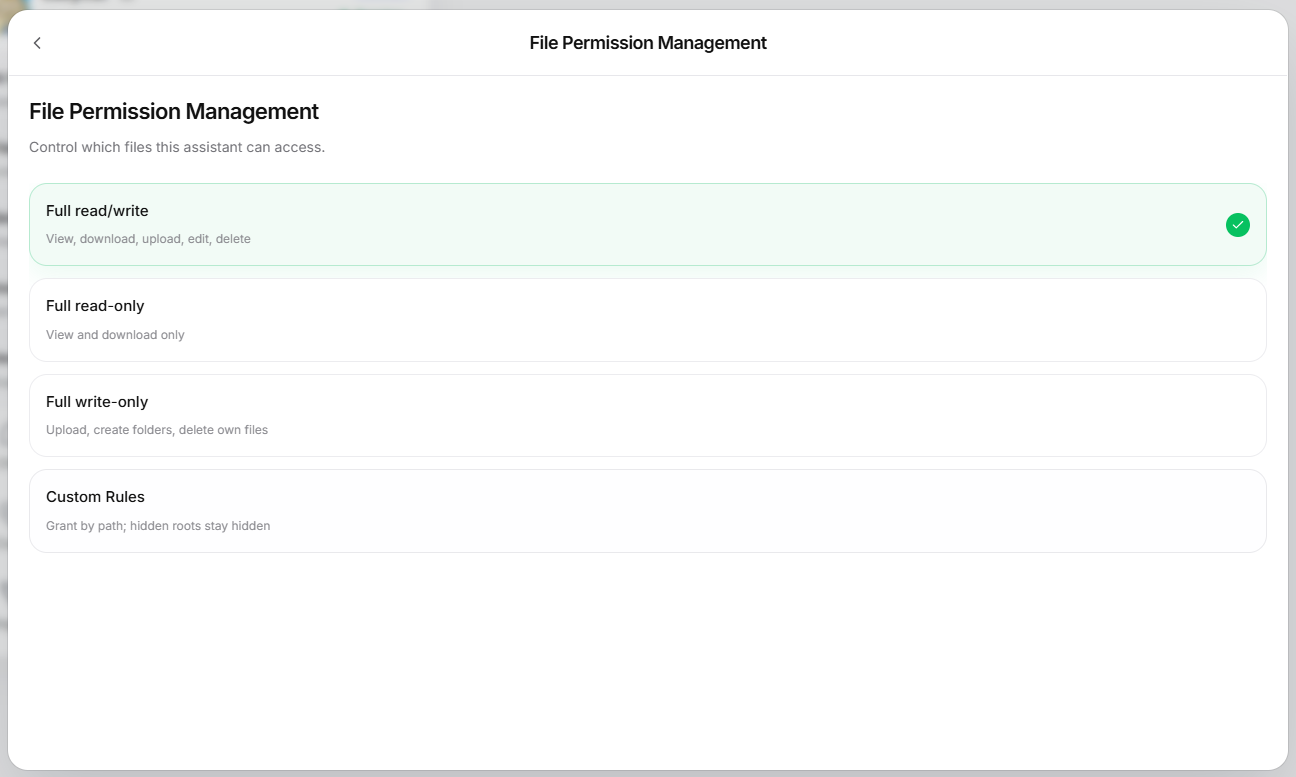
To read and write files in the Cloud Drive, you can configure file permissions by clicking on File Permission Management in the AI Assistant settings page.
5. AI Assistant Management
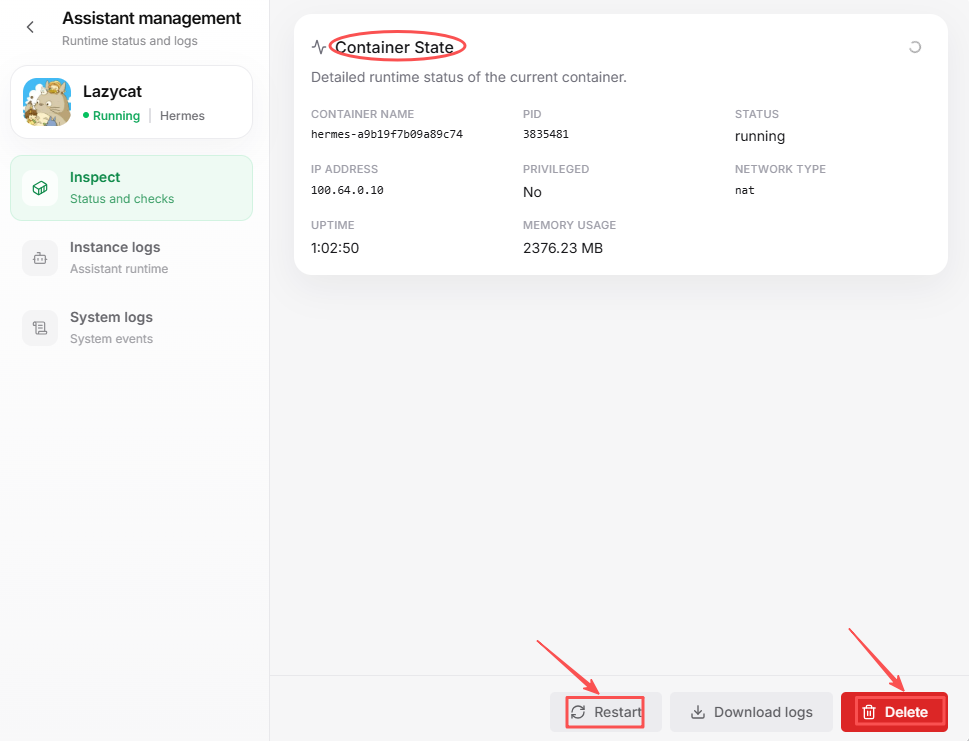
On the AI assistant management page, you can restart, delete, and view the assistant's logs.