iPhone Full Backup
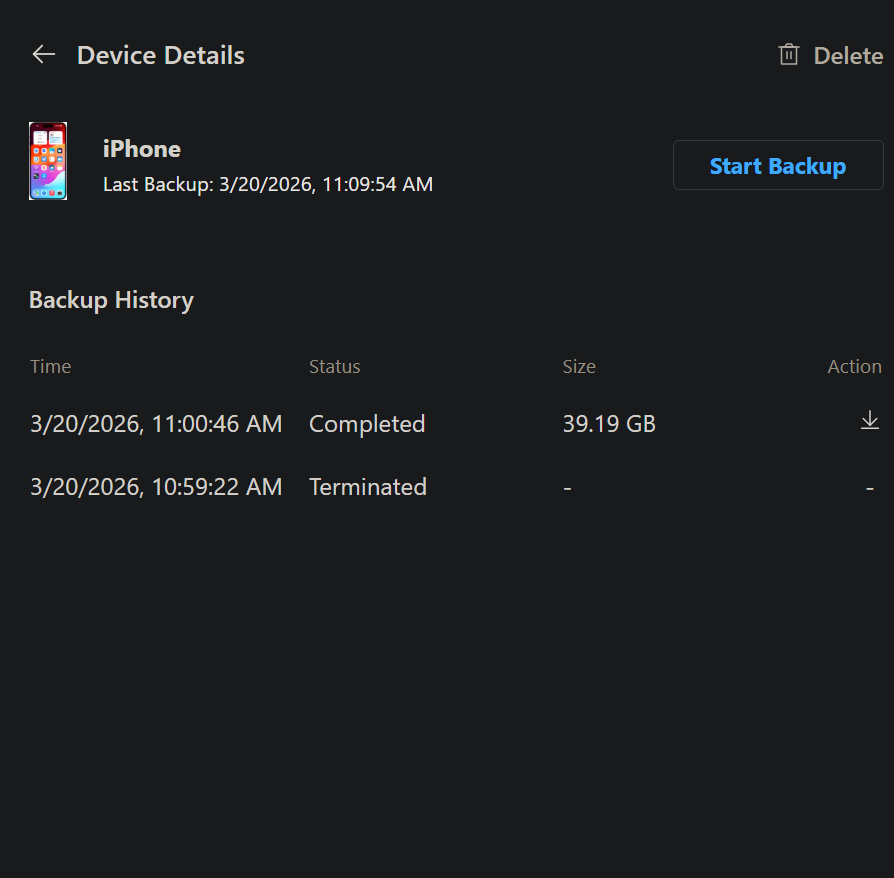
LCMD released a new iPhone backup function. It allows you to perform a complete backup of your iPhone as shown in the image.
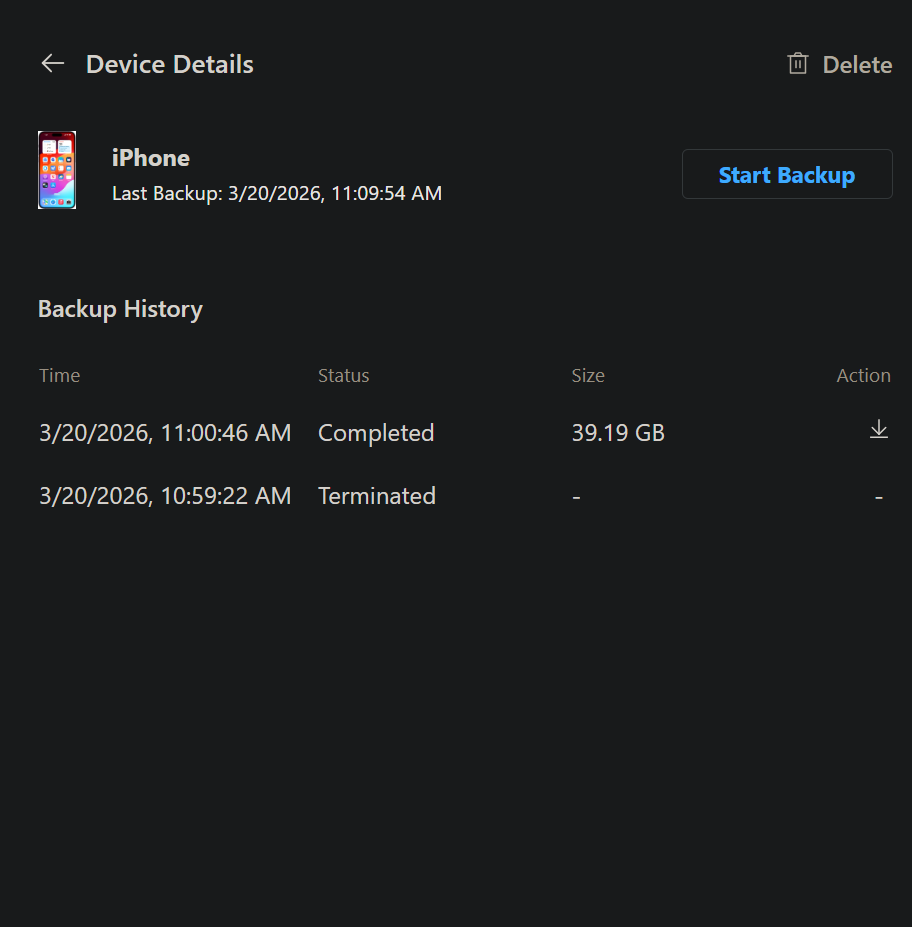
Incremental backups are supported. All backed-up data is stored in LCMD. The backup data can be downloaded at any time.
Let's take a look at how to use it.
First, connect your iPhone with LCMD using a data cable (USB or Type-C is fine). Once connected, you should see your iPhone.
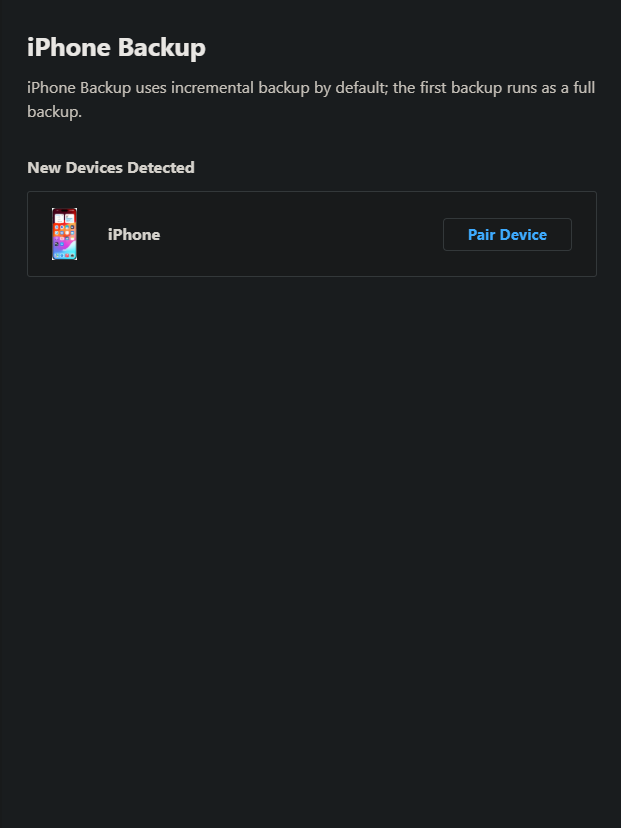
If you don't see your iPhone after connecting, try using a different USB or Type-C port on LCMD. Alternatively, it could be a problem with the data cable connection, try a different data cable.
Once your iPhone is found, click Pair Device. The app will then show a message indicating it’s waiting to pair.
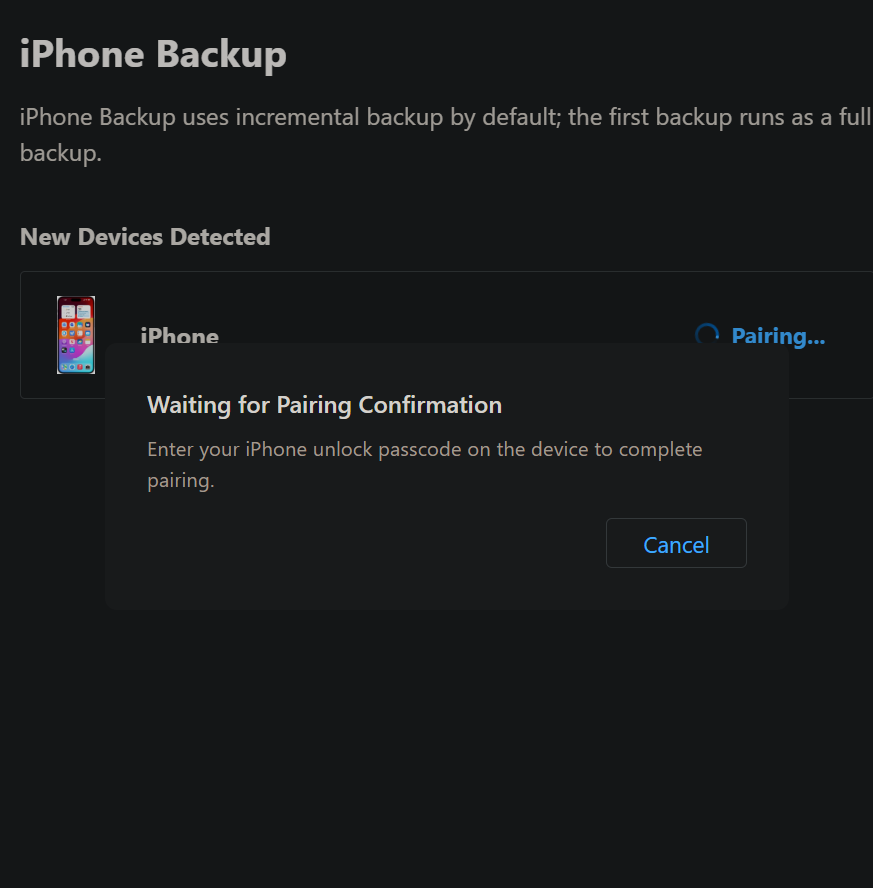
During the pairing process, an authorization prompt will pop up on your iPhone. Please tap Trust and enter your iPhone unlock passcode.
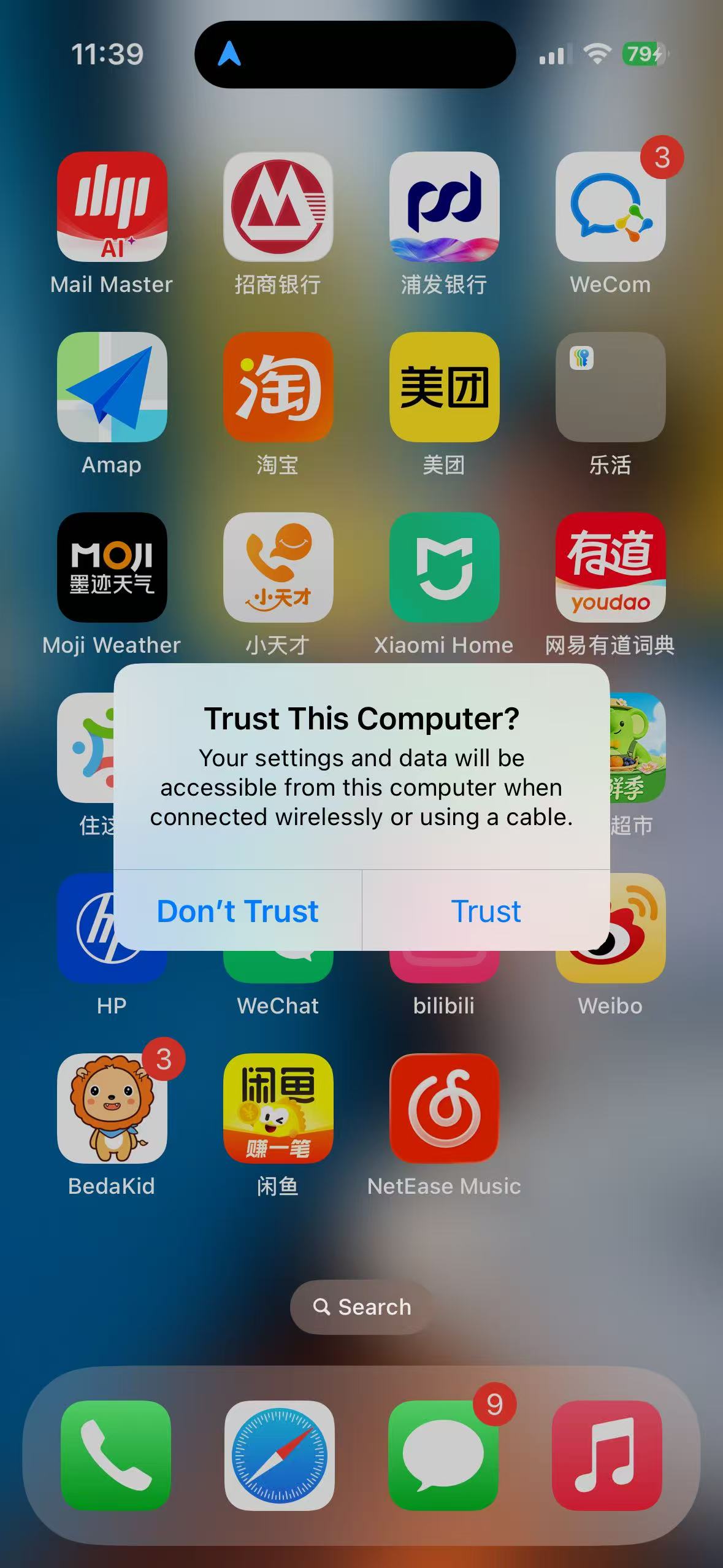
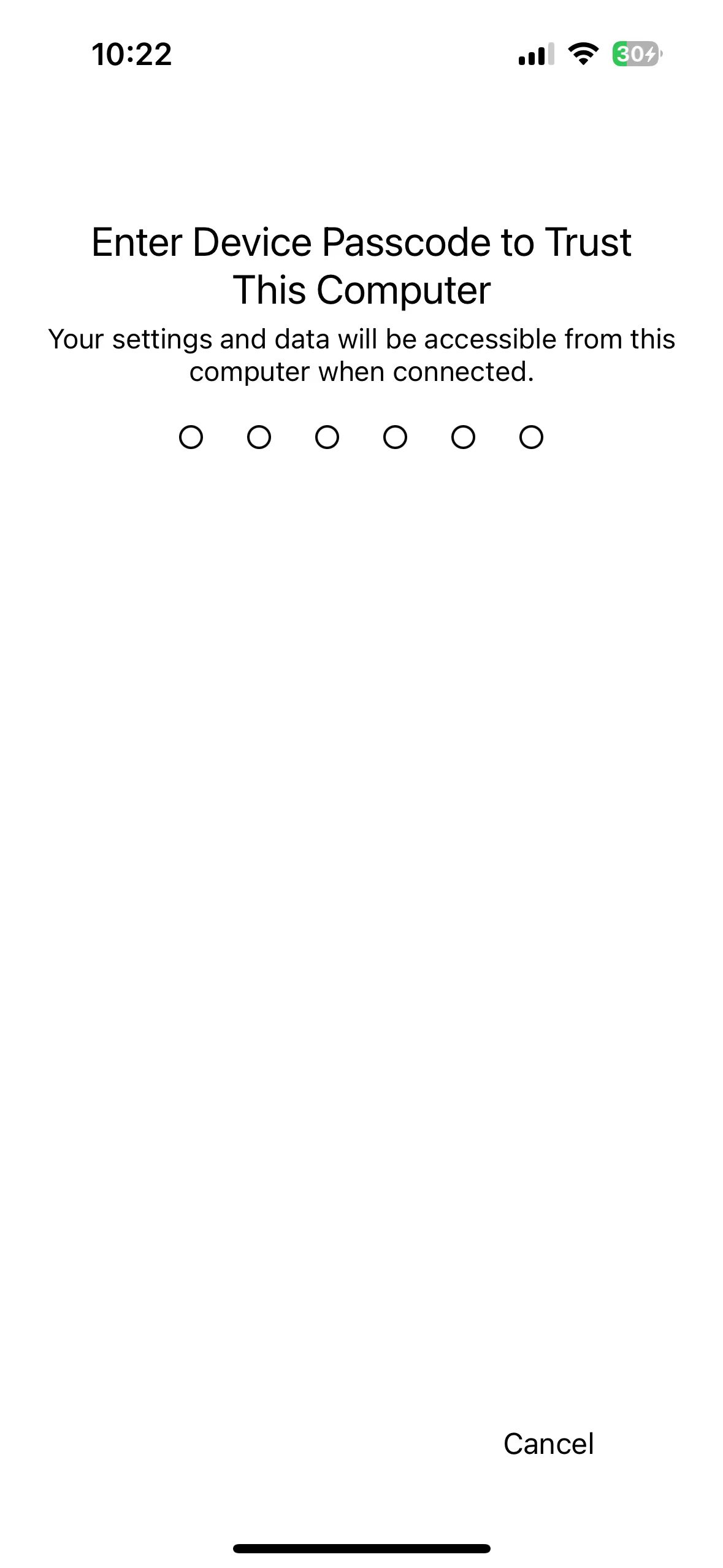
After permission is enabled, backup status will be displayed.
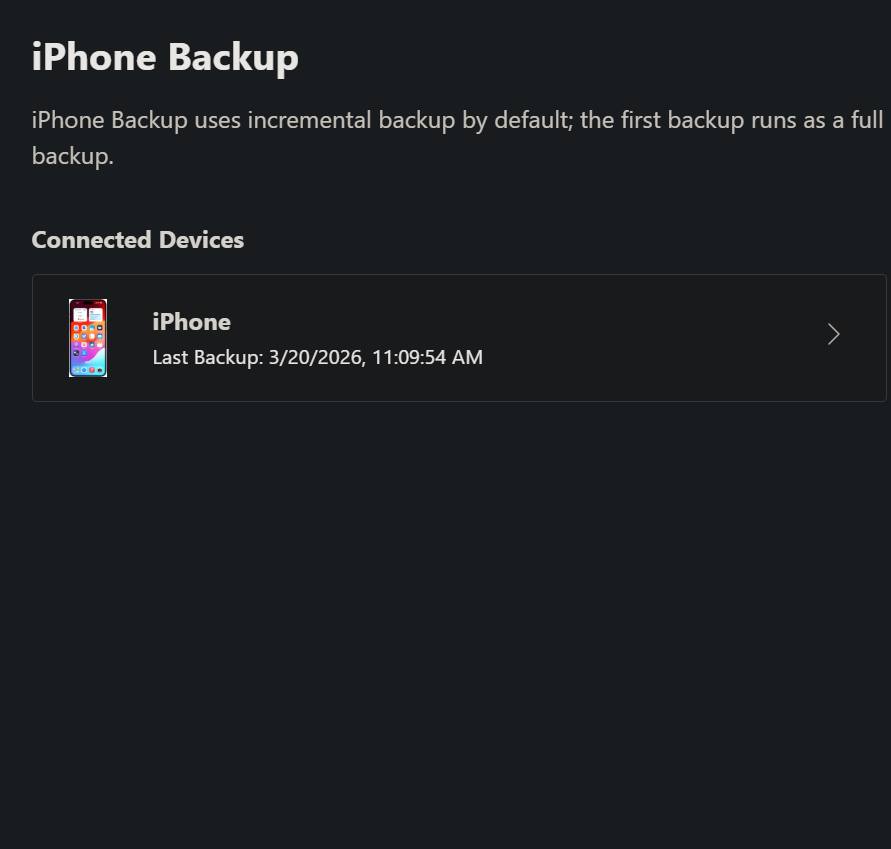
Clicking on the device will take you to the backup page. This page will also display the backup history.
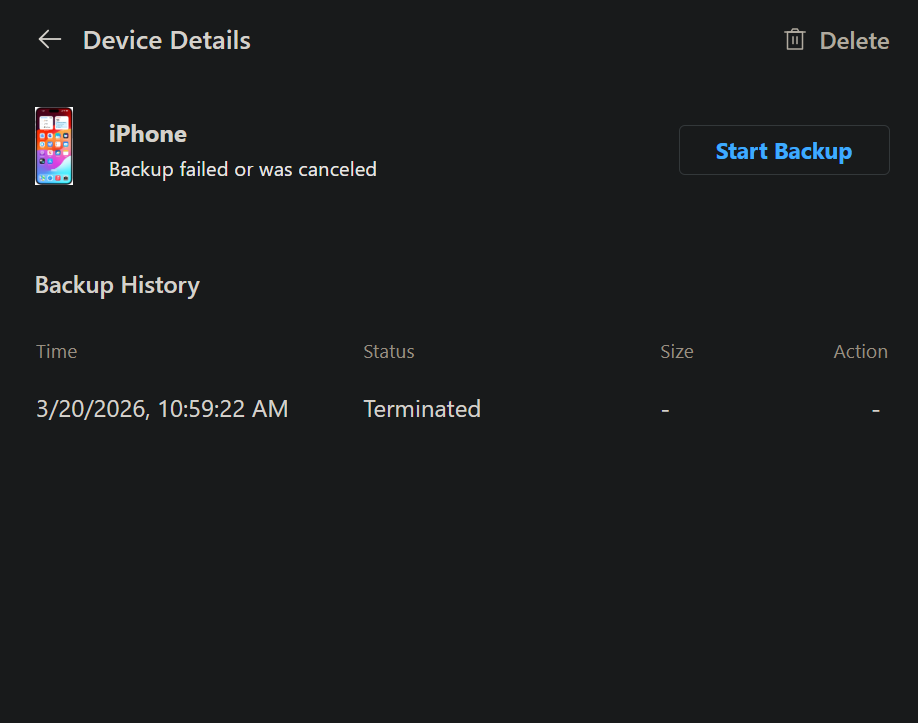
Click "Start Backup"on right side, it requires the second authorization on your iPhone. This prompt may flash quickly, but don't worry, tap Trust and enter the password.
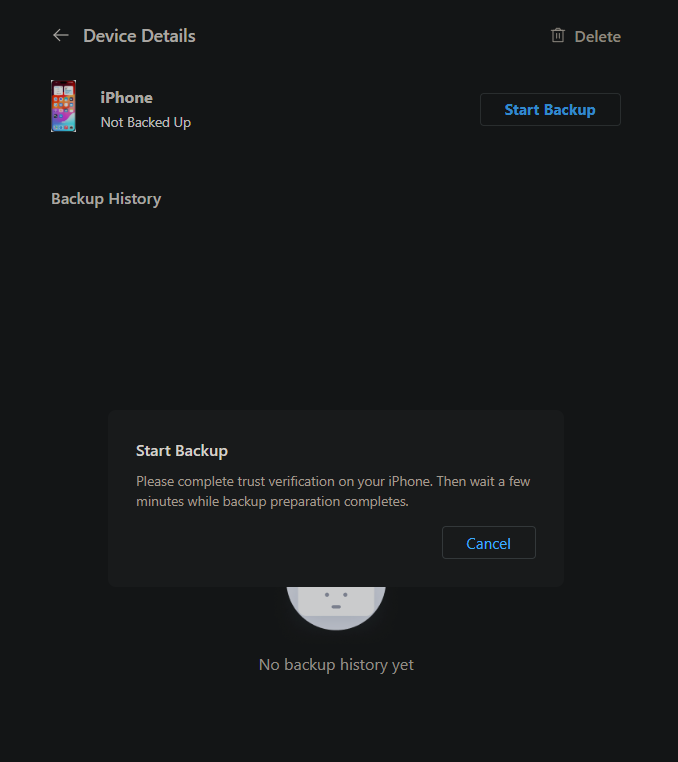
Then it will enter backup mode. You can see the backup progress on the right. You'll see that a new backup record is created.
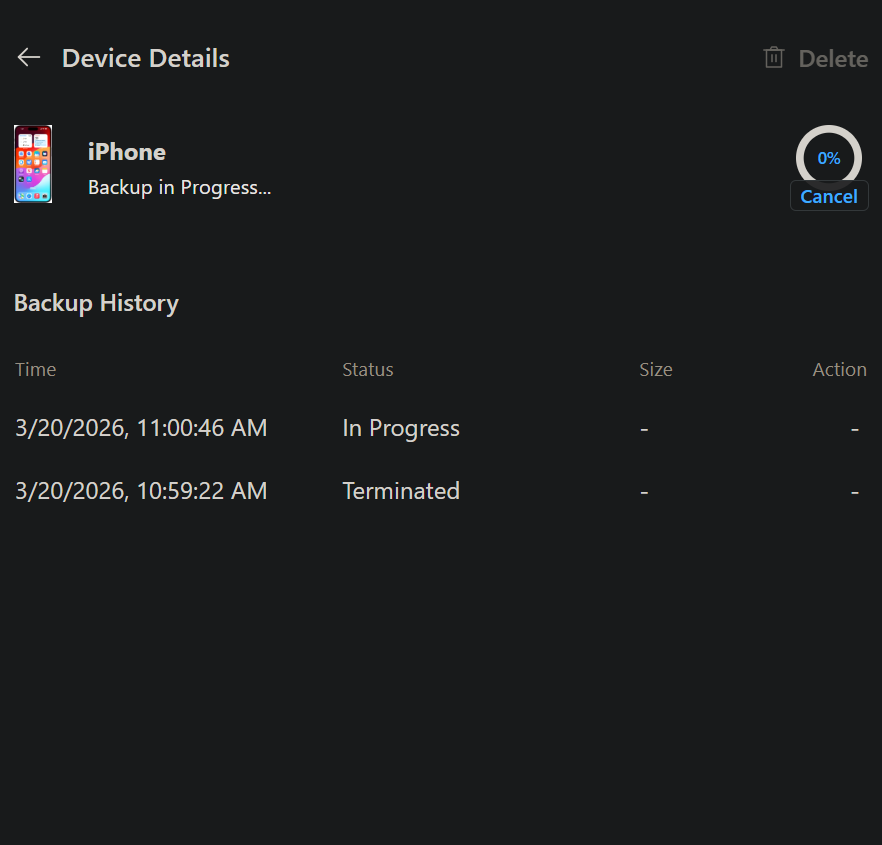
The initial backup may take a long time (because it's a full backup), so it's recommended to perform the backup at night when you're not using your phone. Subsequent backups will be much faster because they are incremental backups.