
How to Save iOS Office Documents to LCMD
1. Check Basic Environment
1.1 Log in iOS Client and Check Network VPN
LCMD runs in VPN mode on the iOS client and must remain running in the background.
Users can directly select files from applications such as WeChat and QQ, and save them to LCMD; or send files directly from LCMD without downloading them locally.
Both direct connection and relay are OK, but direct connection delivers the best transmission performance.
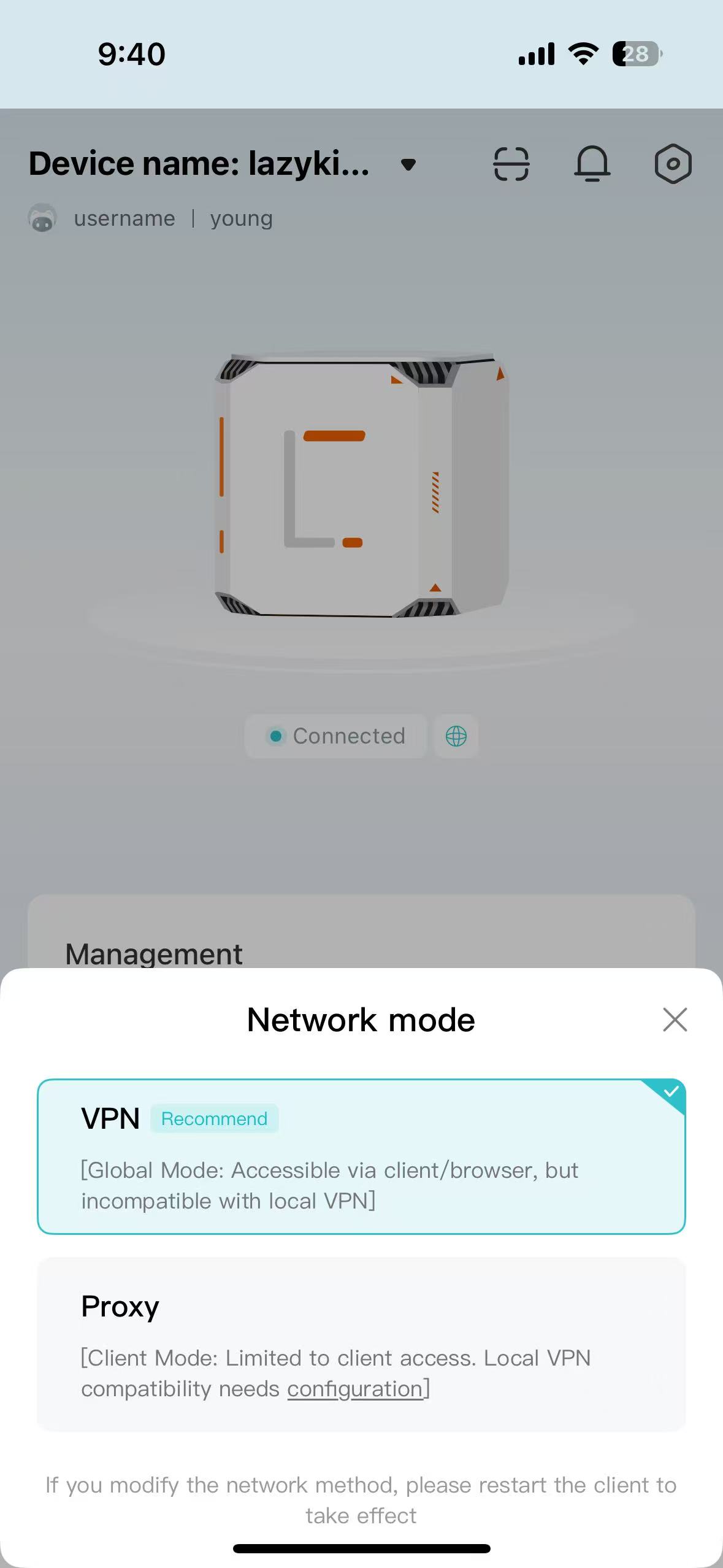
1.2 LCMD Displayed in App Files of Your iPhone
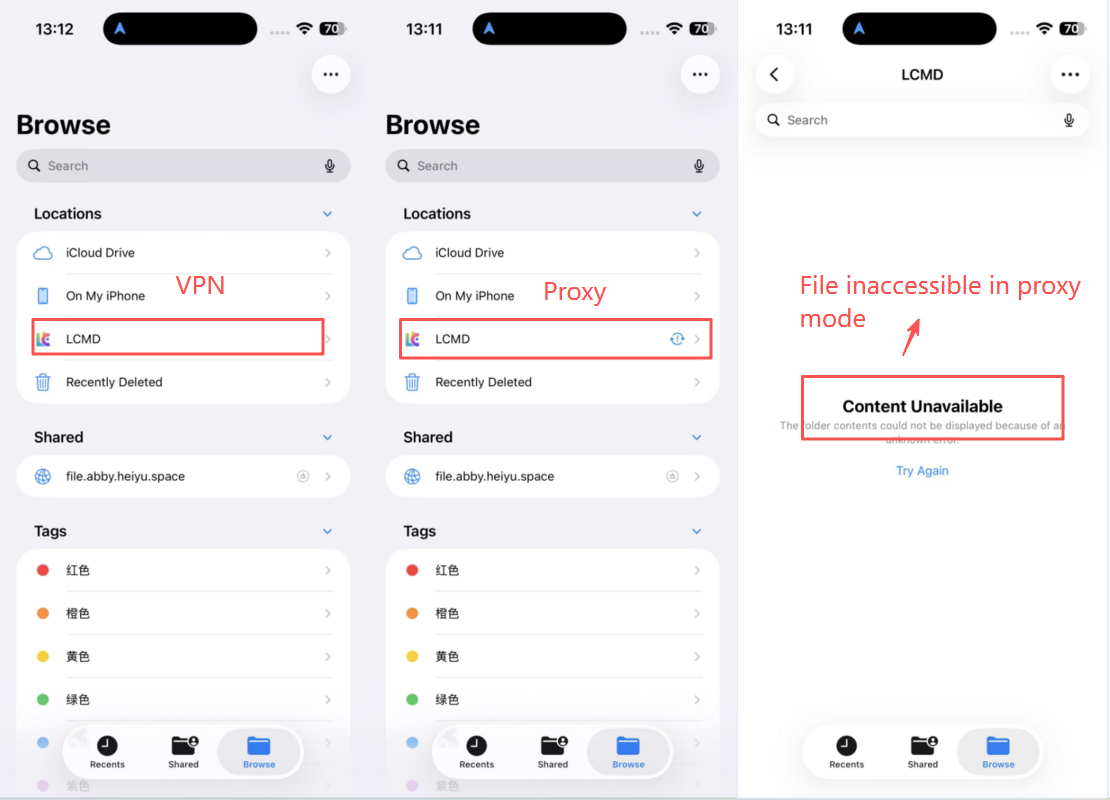
Note: As shown in the screenshot, LCMD is already listed under the Locations (auto‑mounted). For a more reliable connection, manual configuration is recommended: Click the ellipsis (…) and Connect to Server in the top‑right corner in Files app, then enter the server address displayed in the Shared list in the screenshot (namely LCMD SMB shared address).
2. File Transfer
2.1 Send LCMD Cloud Drive Files to WeChat
Traditional Method: you must first download files from the Cloud Drive to your mobile device, then share the files with others via apps such as WeChat.
LCMD Optimization: file-downloading is not needed any more. Select and share files directly from the LCMD (peer-to-peer transmission remains unchanged).
Steps:
(1)In the WeChat chat interface, tap + on the right of input box.
(2)Select File.
(3)In the file selector, tap "Browse (or a similar option, usually "Phone Files"/Local Storage).
(4)In the locations list, select "LCMD" (if both SMB and the local client are mounted, select the one you want).
(5)Browse and Select (or multiple select) the target files.
(6)Tap Open.
(7)Confirm and Send.
Note: If you encounter an error when selecting a file in step 5 (the error message is the same as described in section 1.2), please try:
Switch the local client's network mode (e.g., turn VPN off and then on again).
Restart the LCMD APP.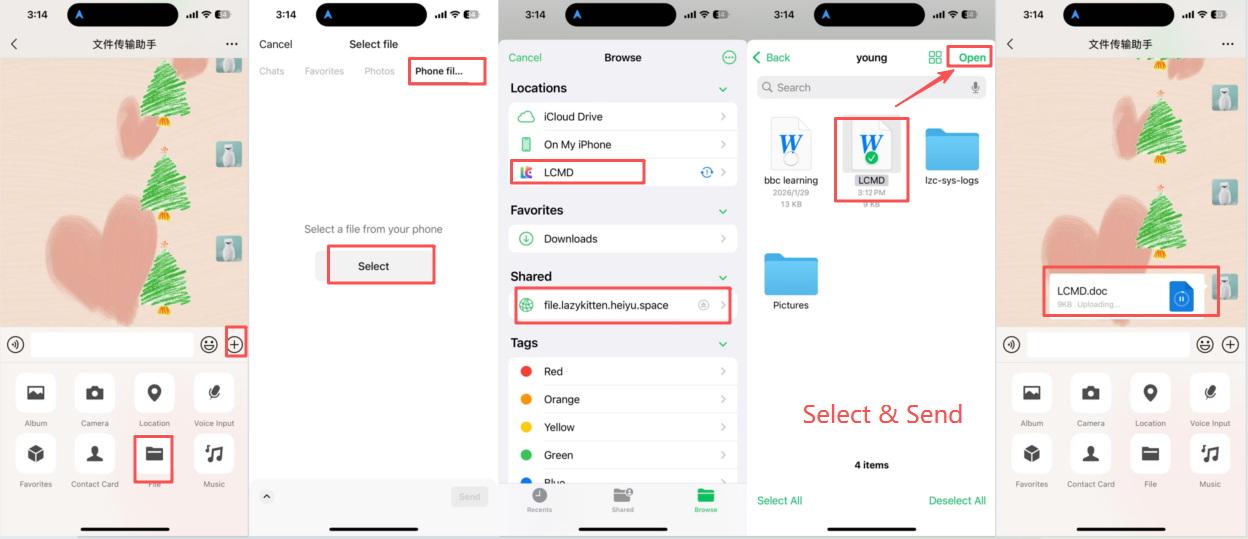
2.2 Save Wechat files to LCMD Cloud Drive
Steps:
(1) Open file you want to save (in app WeChat or QQ)
(2) Click ...(More) on the top right corner
(3) Select Open with another app
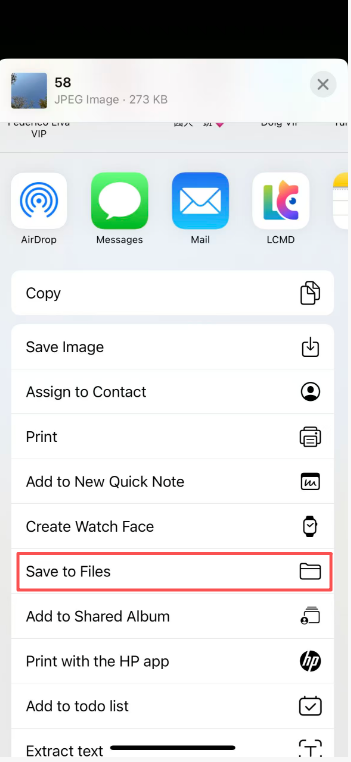
(4) Select Save to Files(iOS Files App)
(5) Select LCMD under Locations (select one from multiple choices)
(6) Browse and select target storage directory.
(7) Click Save on top rigtht corner
Note: If you encounter an error in step 5 (the error message is the same as described in section 1.2), please try:
Switch the local client's network mode (e.g., turn VPN off and then on again).
Restart the LCMD APP.
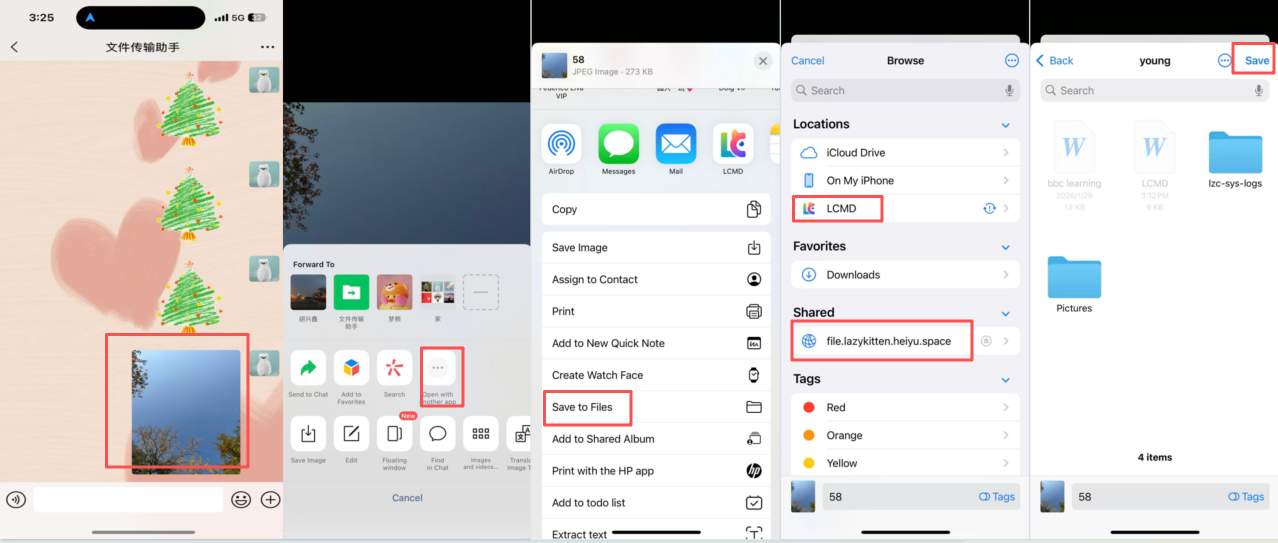
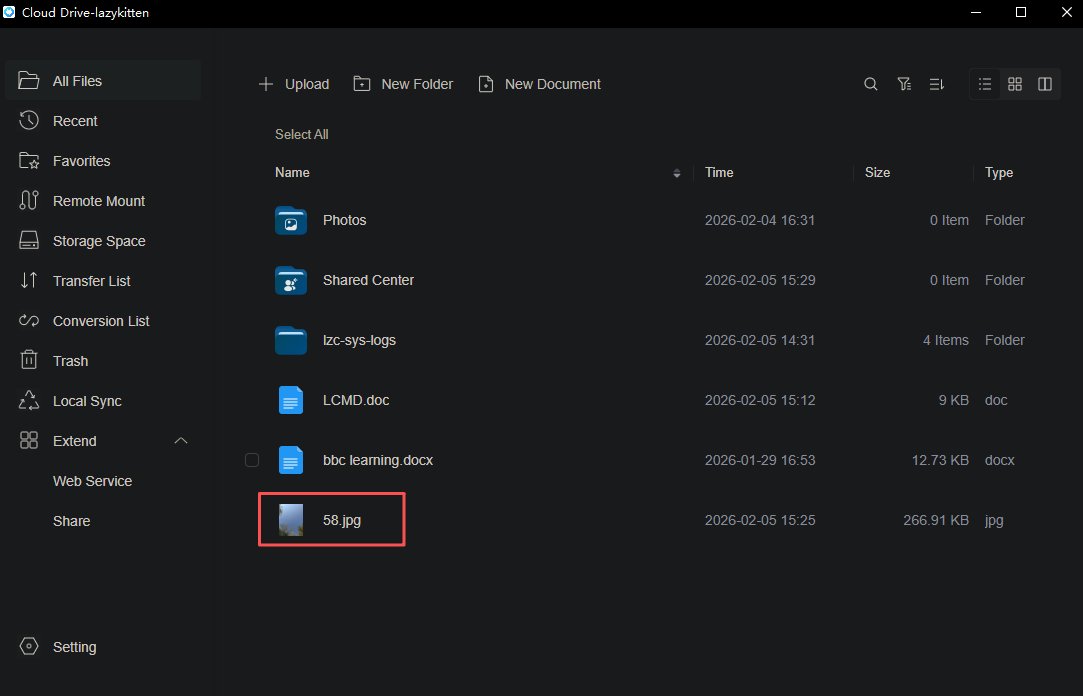
Verification Method: open LCMD Cloud Drive, navigate to your selected storage directory to view the relevant file.
2.3 Supplementary Explanation
As long as the app can call the system's "Save to Files" sharing panel on iOS, the files then can be saved to LCMD (provided that the LCMD is mounted via SMB and integrated into the "Locations", and the app is running correctly in the background).
3. Conclusion
Applicable Conditions and Precautions:
(1)For iOS client only.
(2)VPN network mode must be enabled in the LCMD client.
(3)If you encounter the error in section 1.2, it is recommended to switch to a more stable network environment (e.g., try different Wi-Fi networks or switch to 4G/5G mobile data).
(4)File transfer speed is greatly affected by network quality and file size/type.