
How to Mount Dropbox and Google Drive with WebDav?
Today I will show you how to mount Dropbox and Google Drive on LCMD Cloud Drive with Webdav.
To do this, you will need the following:
One Google account
One Dropbox account
LCMD with its Cloud Drive installed
One account on https://app.koofr.net
1. Sign Up
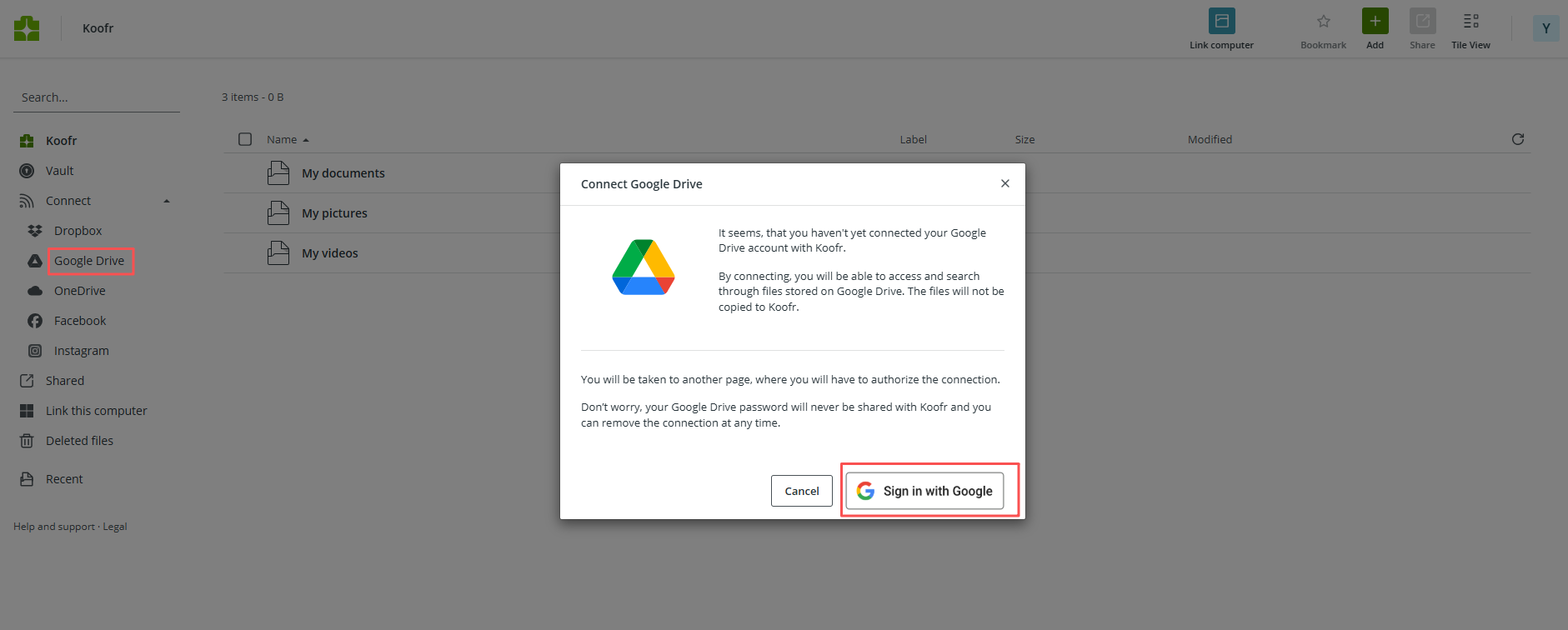
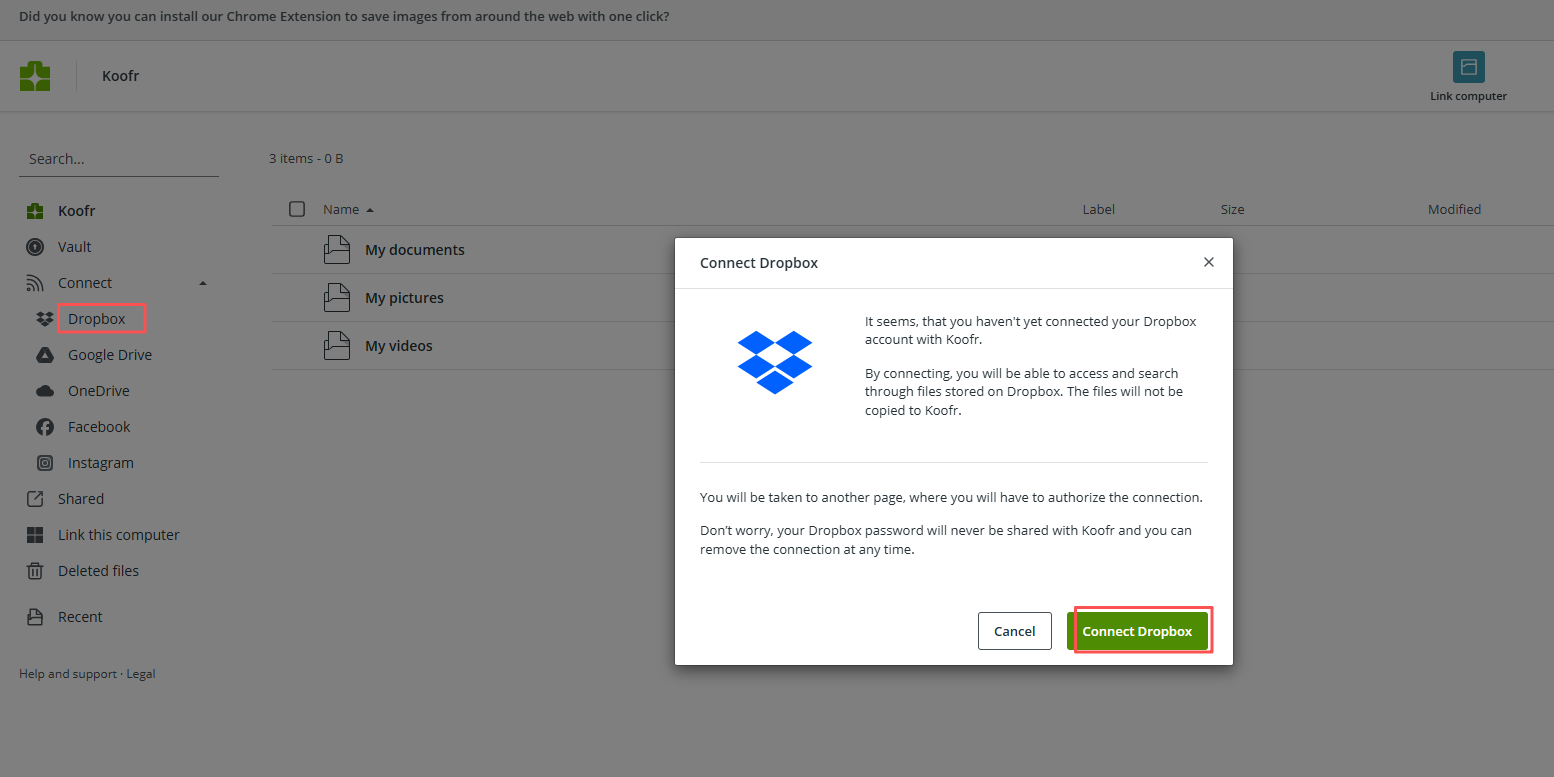
Register a koofr.net account in web, then connect Google Drive and Dropbox like below.
Click the icon of your personal account on top right corner, select Preferences.
Click Password and set up a new password for app like below.
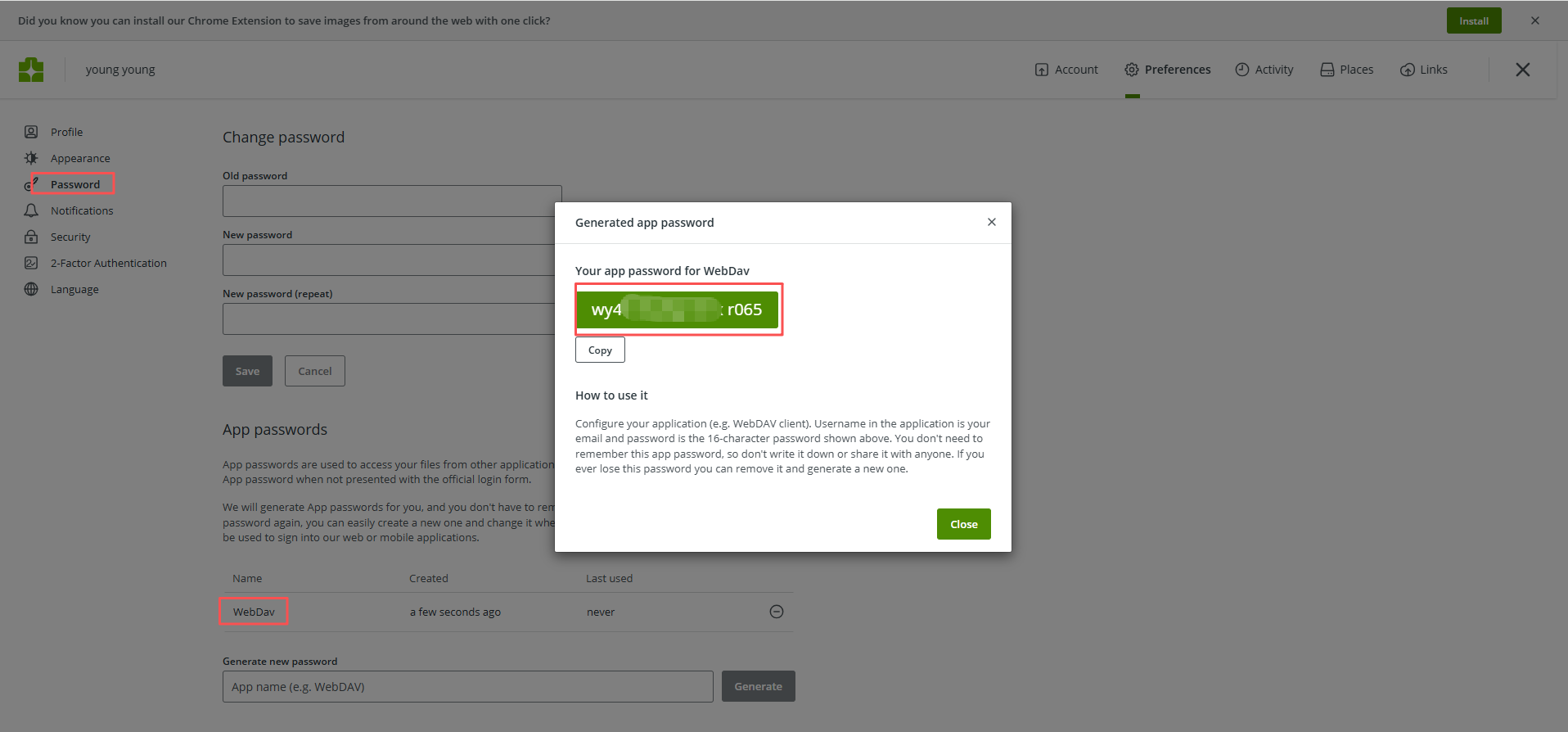
The password should only appear once. Copy it and save it for later.
2. Mount in LCMD Cloud Drive
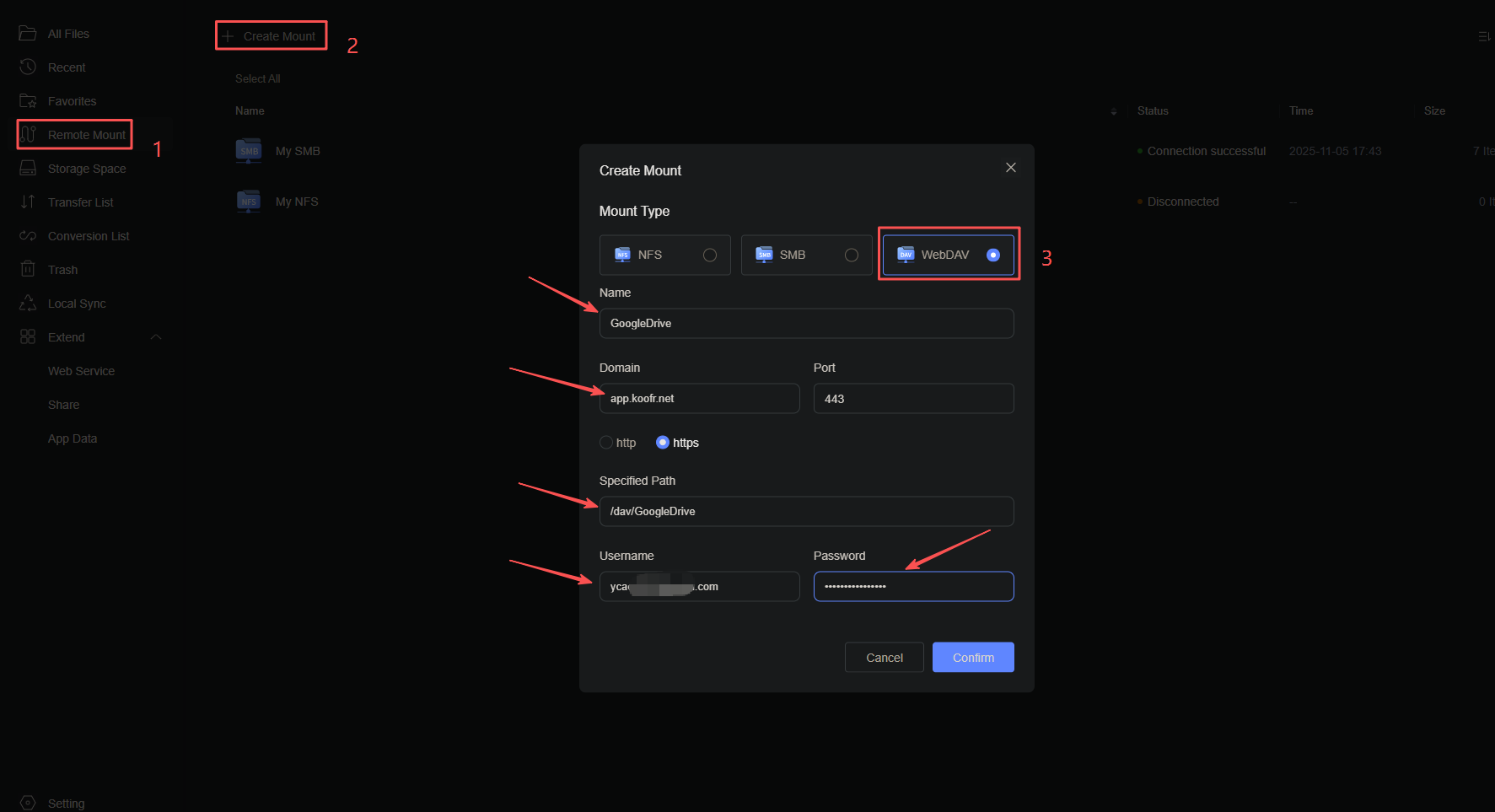
Open Cloud Drive, click Remote Mount → Create Mount → WebDav
For GoogleDrive
For Dropbox
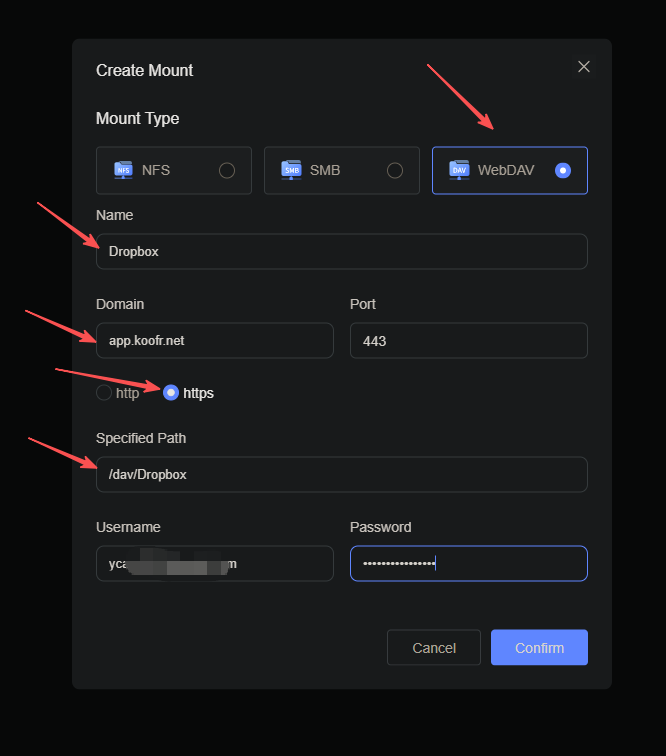
Domain Name:
app.koofr.net
type: https
path: /dav/your cloud drive name mounted in koofr
username: email address used for sign up koofr.net
password: the app password from the above.
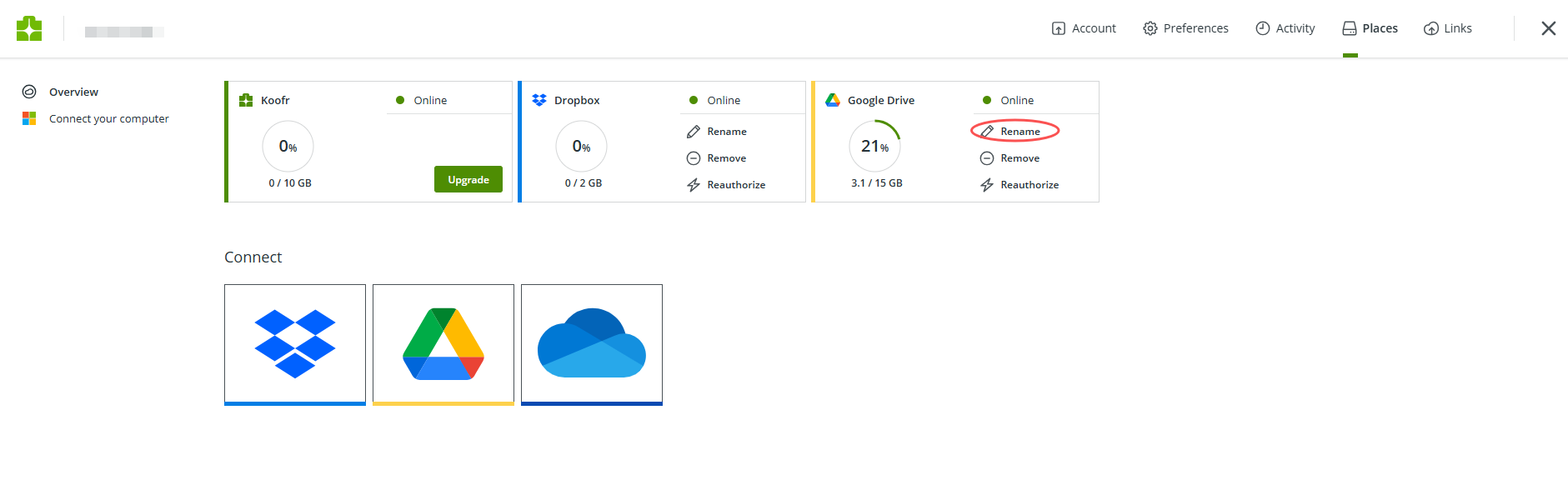
Note: you can change the name of your cloud drive in Koofr Drive through the Places section.
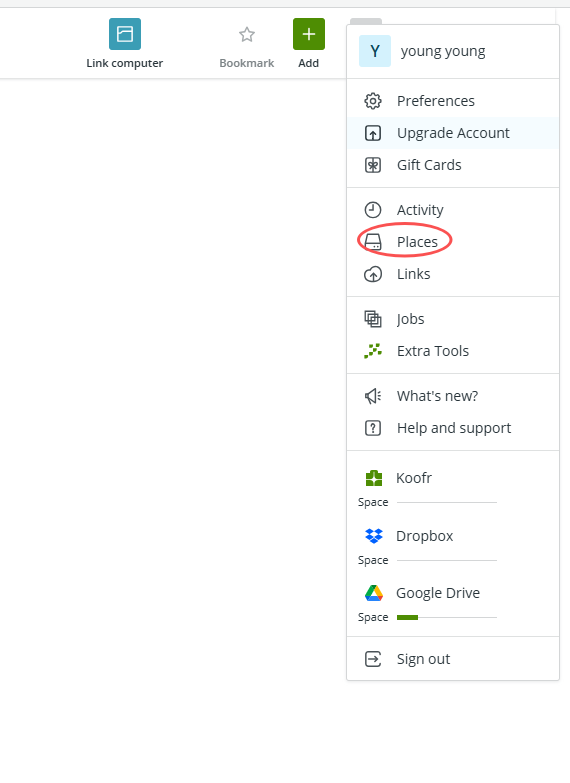
You can modify by clicking Rename
Note: Remote mounts may disconnect occasionally due to the overseas server.