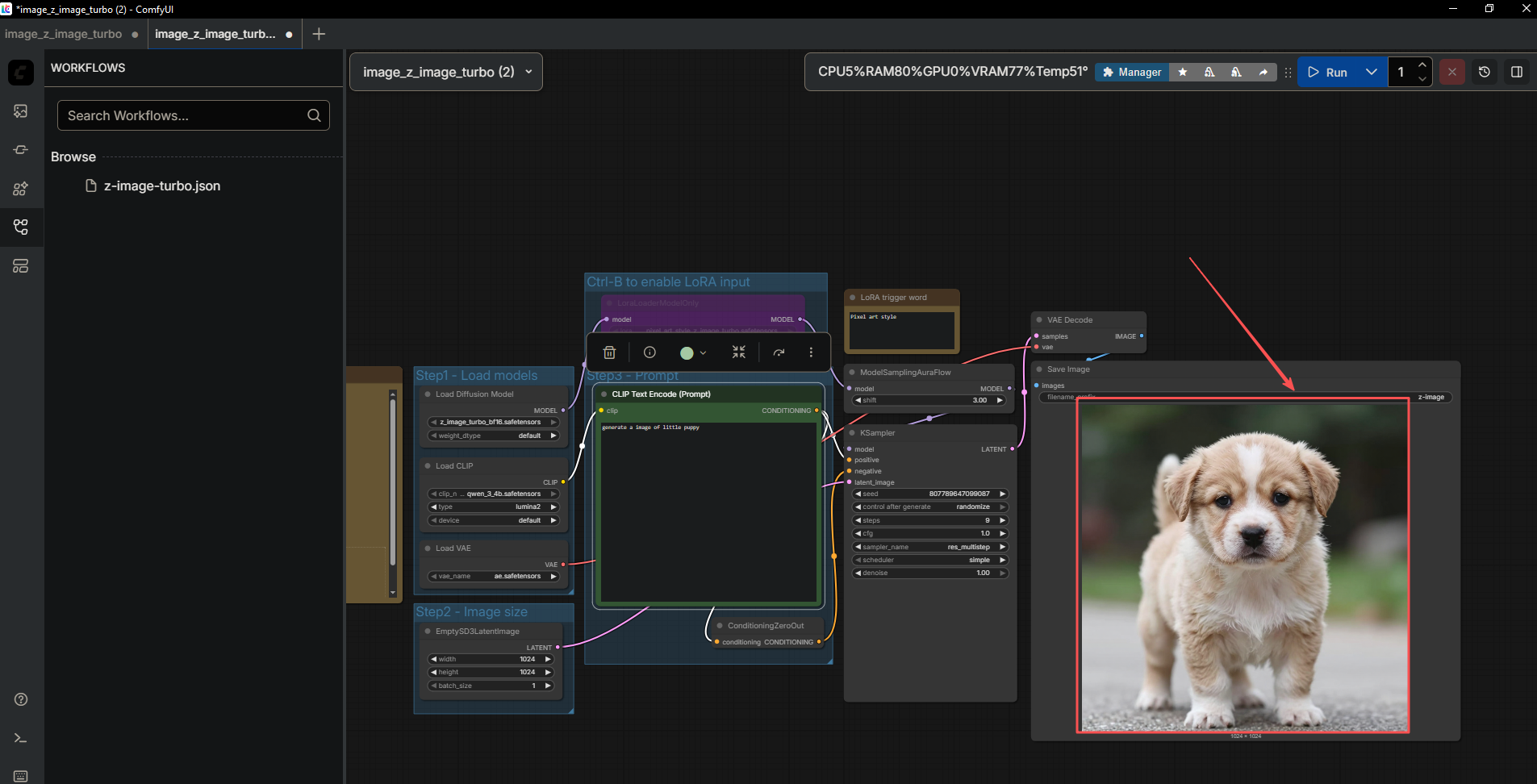
Generate Images with ComfyUI & AI Pod
This article describes how to deploy z-image generation model using the ComfyUI with AI Pod.
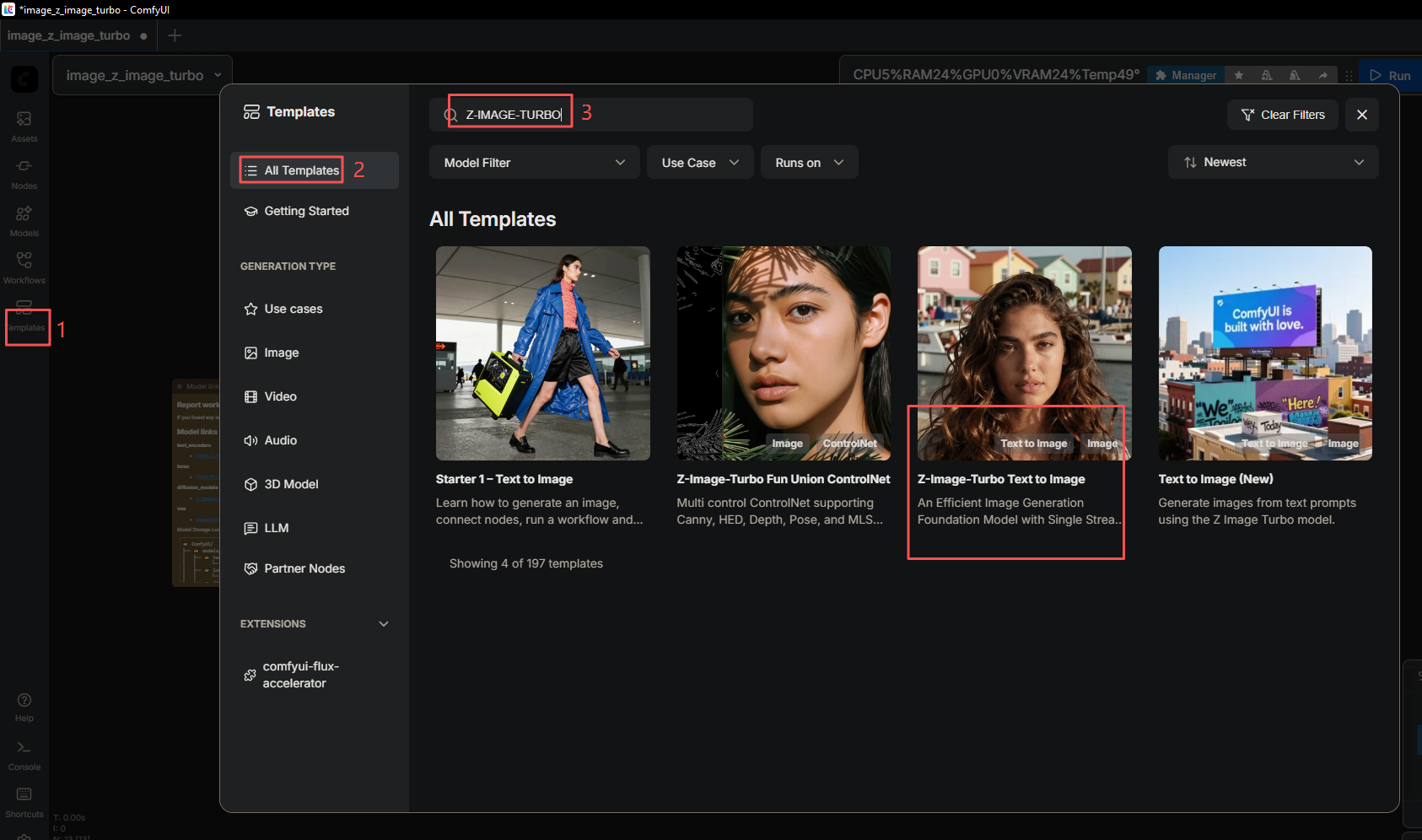
Download and install ComfyUI from LCMD app store first. Open the app, click Art Studio. Select Templates on left sidebar → All templates → search for Z-IMAGE-TURBO as below.
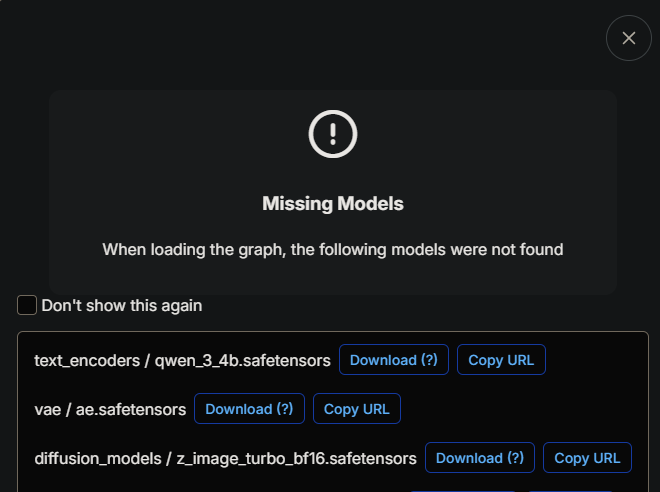
The official ComfyUI model library does not include the models required for this workflow currently. You can import the template, click download button, and then upload models to the corresponding directory with a file manager.Those models must be downloaded first.
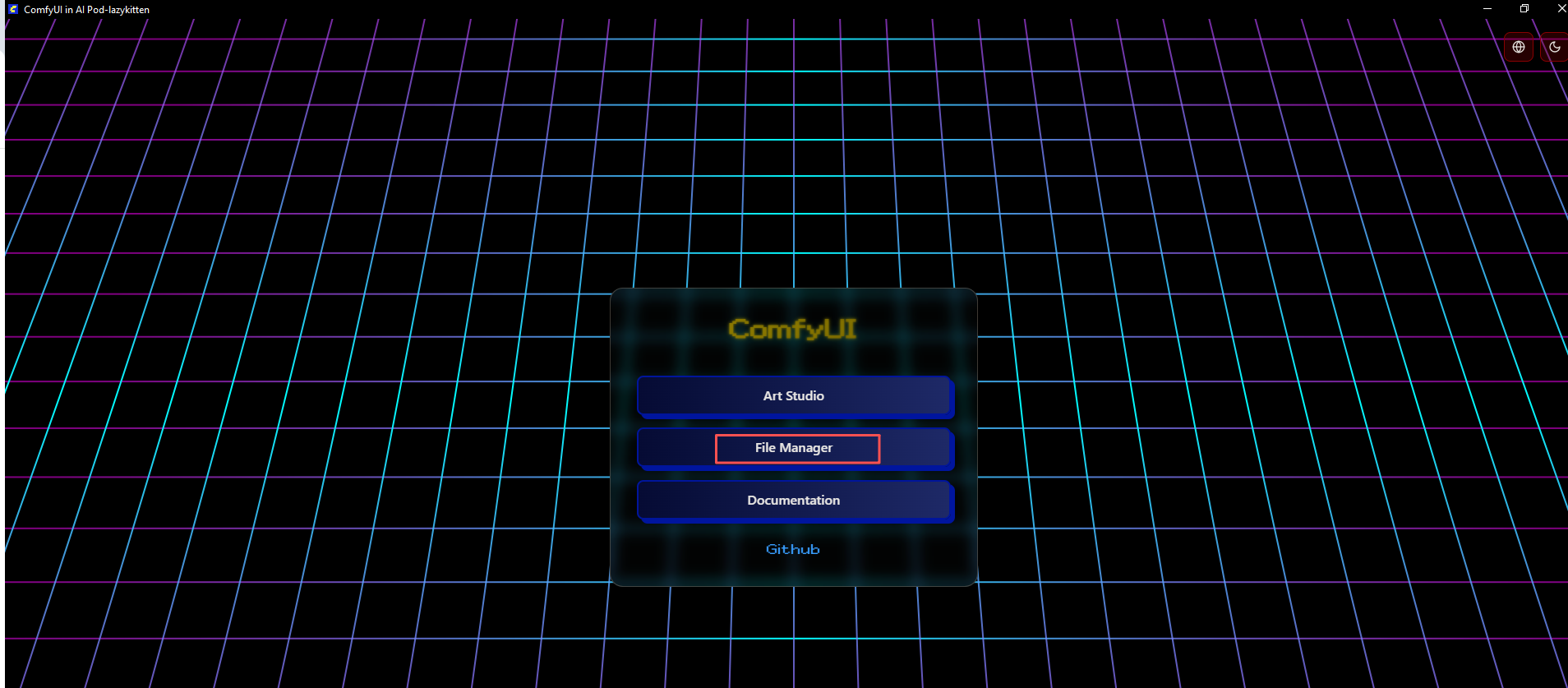
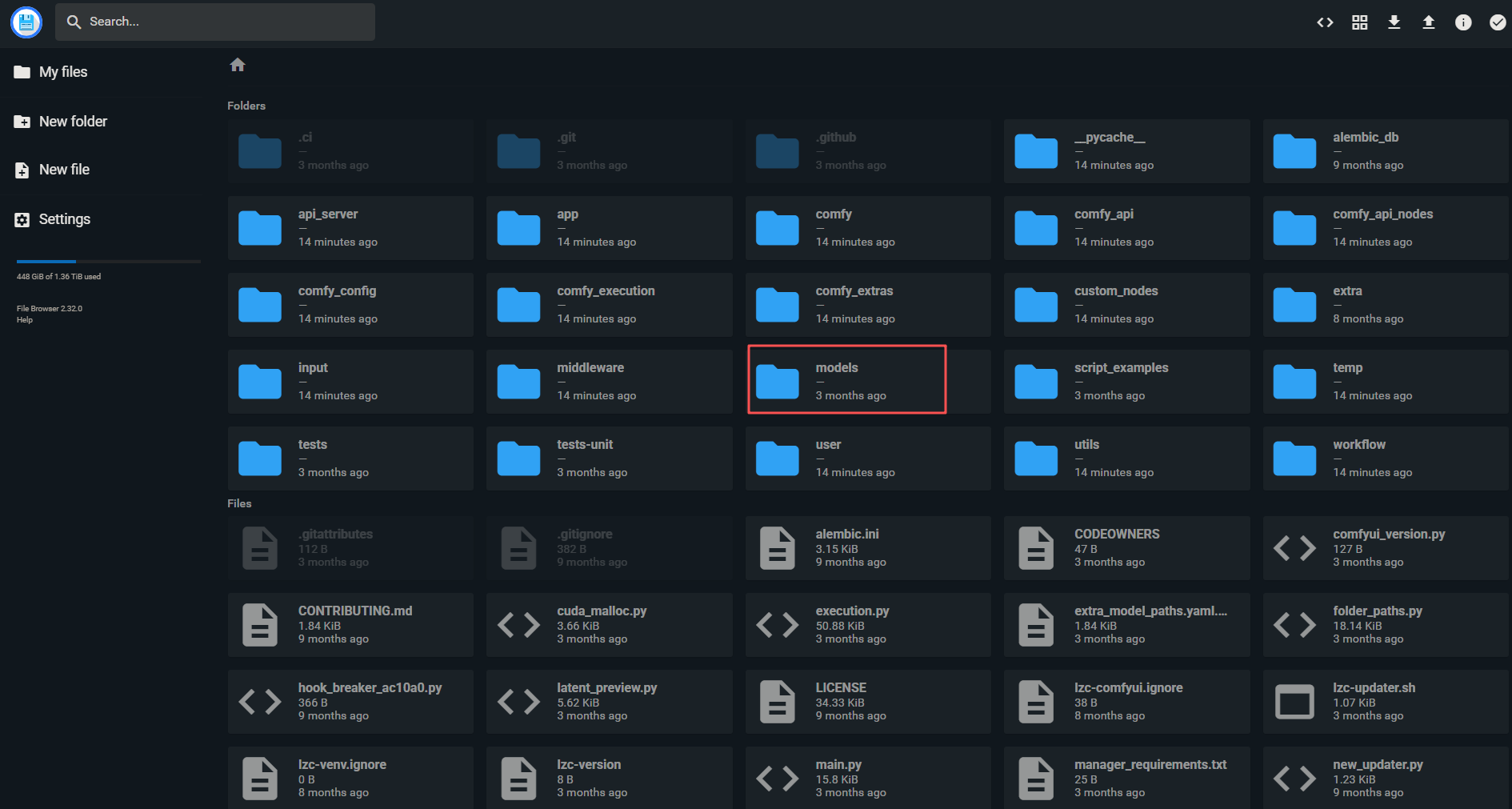
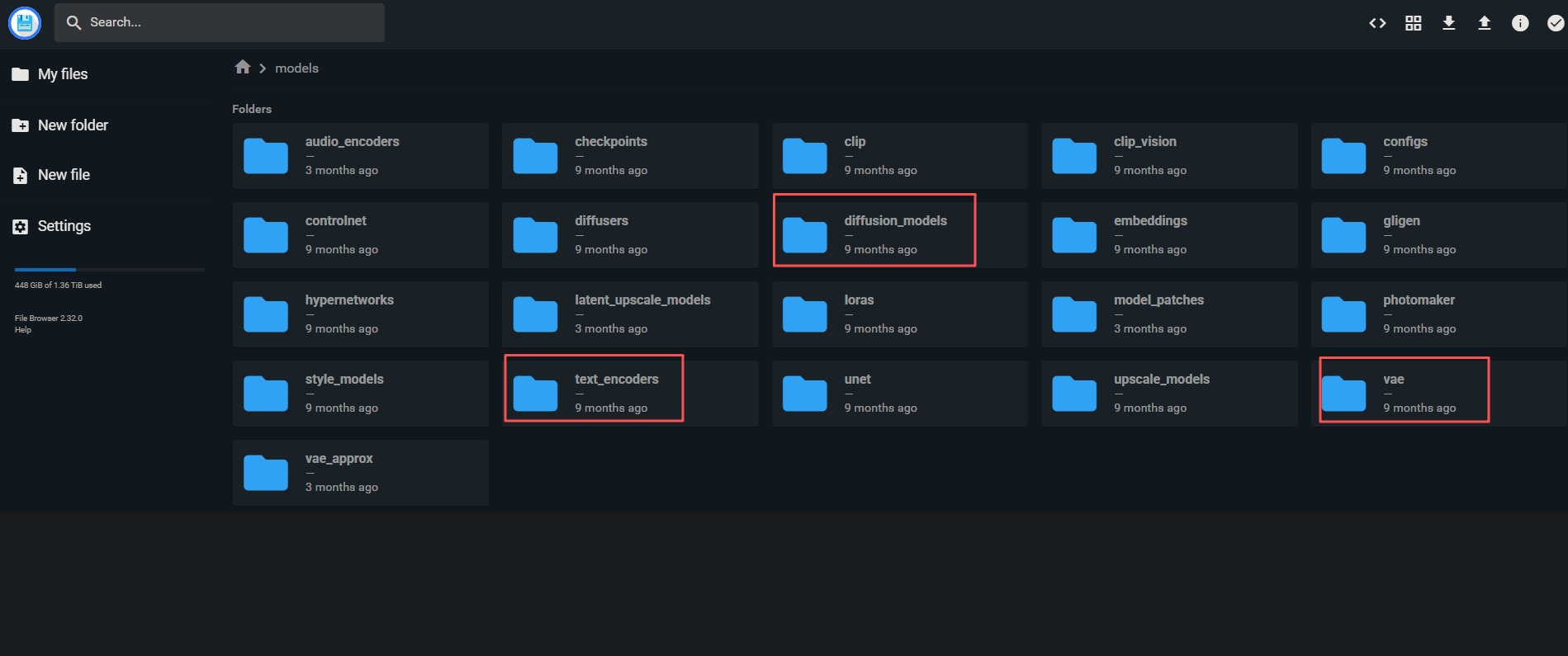
If you find the download or upload speed is not ideal, you can manually download the files to the corresponding directory in AI Pod.
# Enter AI Pod
ssh nvidia@AIPod ip
# pass word:nvidia

# navigate to the directory where models are stored.
cd /ssd/lzc-ai-agent/data/cloud.lazycat.aipod.comfyui/app/models
cd text_encoders


# Use aria2 multi-threaded download to fully utilize bandwidth.
sudo apt install aria2
sudo aria2c -x 16 -s 16 https://huggingface.co/Comfy-Org/z_image_turbo/resolve/main/split_files/text_encoders/qwen_3_4b.safetensors -o qwen_3_4b.safetensors

# -x 16: Use 16 threads for downloading; -s 16: Split the file into 16 parts for download; -o: Rename the downloaded file to the model name required by the workflow.
# sudo aria2c -x 16 -s 16 download url -o model name

# download the rest models as above
cd vae
cd diffusion_models
cd loras
Where you can find the AI Pod ip.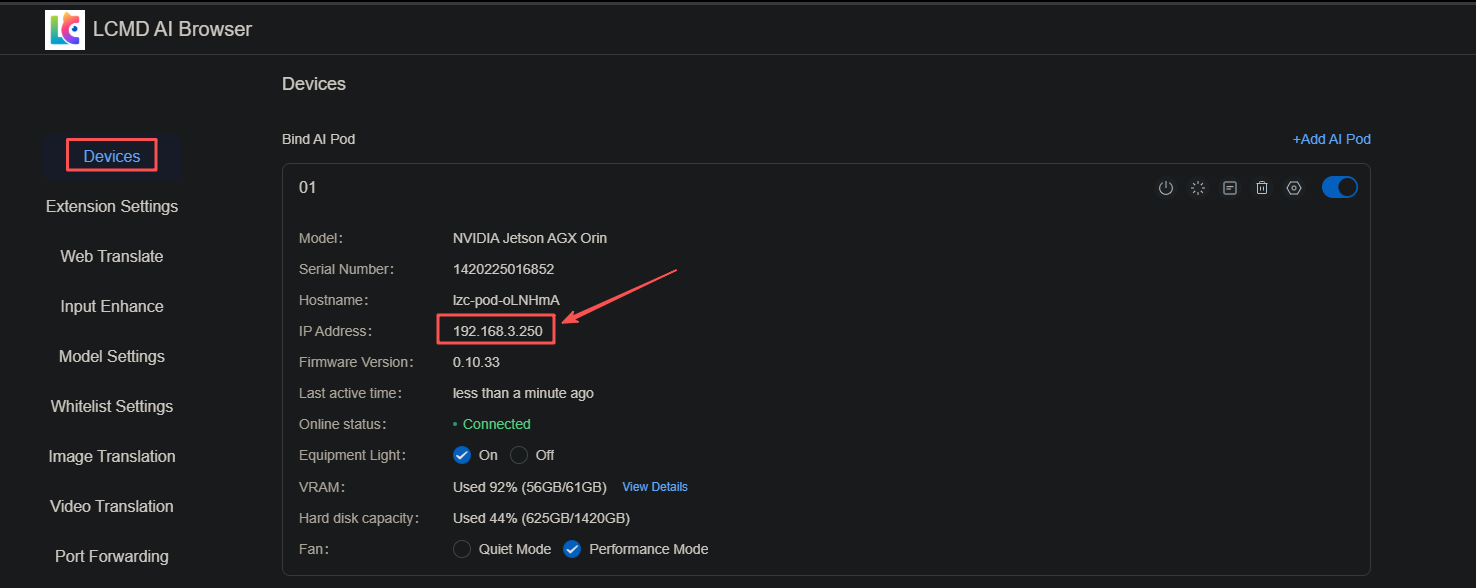
If you need network proxy to download, replace huggingface.co with hf-mirror.com

Ensure that those files are present in the directories of your AI Pod.
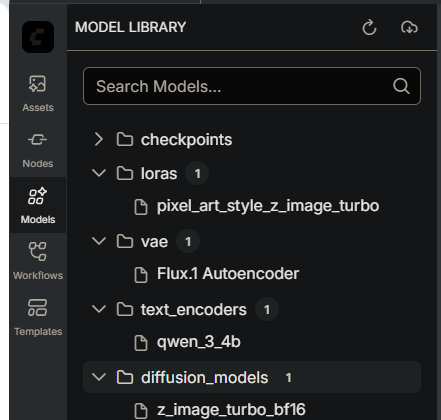
Once the models are downloaded, refresh the ComfyUI page, and you can get started.
Enter your descriptive words in CLIP text encoding.
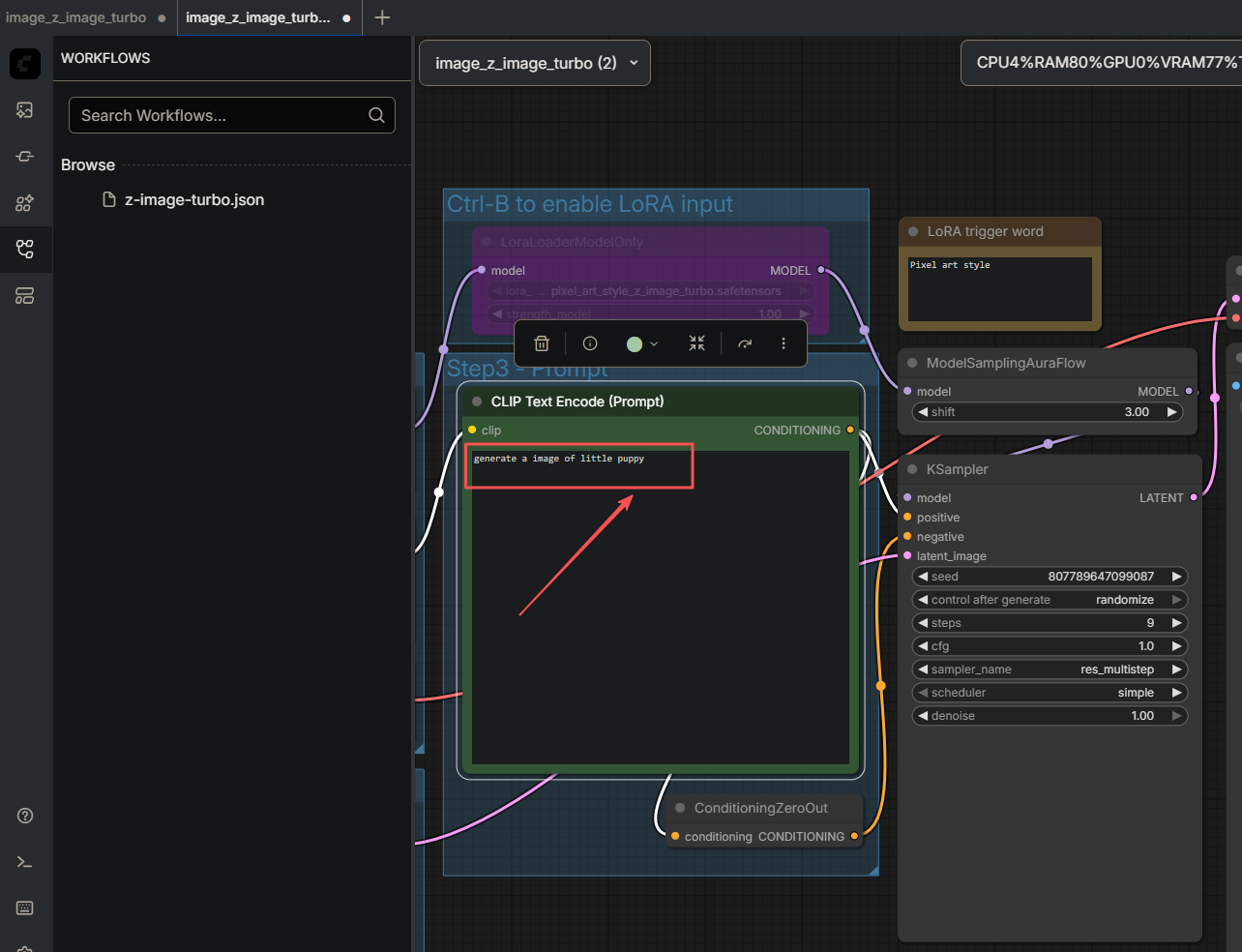
Click Run on the top right corner to generate images.

View the new images just generated!